> ## Documentation Index
> Fetch the complete documentation index at: https://docs.raycaster.ai/llms.txt
> Use this file to discover all available pages before exploring further.
# AI Assistant
> Learn how to use Raycaster's built-in AI assistant for enhanced productivity and automated research
## AI Assistant Overview
The AI Assistant is your intelligent research companion that can help automate complex tasks, analyze data, and streamline your workflow. It has access to powerful tools that can search the web, manage your data, conduct research, and much more.
The AI Assistant understands the context of your current work and can provide targeted help based on what you're working on.
## Getting Started
Open the AI Assistant panel from anywhere in your workspace by clicking the AI button in the bottom right corner.
 The assistant is context-aware and knows what sheet or data you're currently viewing.
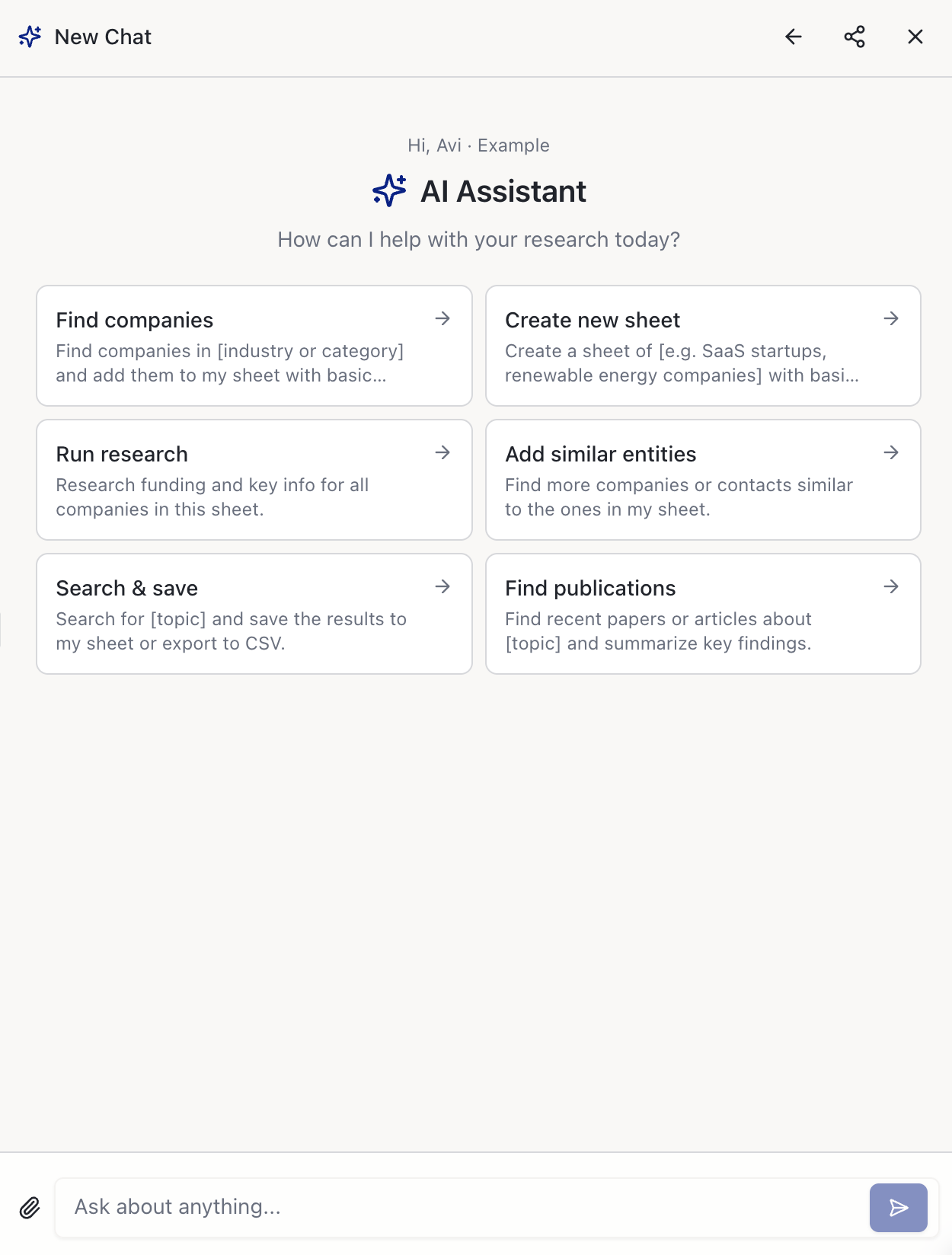 Type your request in natural language. Be specific about what you want to accomplish - the more context you provide, the better the results.
Some operations require your approval before execution. The assistant will pause and ask for confirmation when needed.
Watch as the assistant executes tasks and provides real-time updates on progress and results.
## Core Capabilities
### What the AI Assistant Can Do
The AI Assistant combines natural language understanding with powerful automation tools to help you:
Find companies, people, patents, publications, and conduct deep research across multiple sources
Import, export, organize, and analyze your data with intelligent suggestions and automation
Draft emails, send outreach messages, and manage communication workflows
Analyze data patterns, generate summaries, and extract actionable insights from your research
## Available Tools & Features
### Data & Research Tools
**Find Companies, People & Organizations**
* Search for specific companies or people across multiple databases
* Discover new prospects based on criteria you specify
* Get comprehensive profiles with contact information and business details
**Example requests:**
* "Find biotech companies working on CAR-T therapy"
* "Who are the key decision makers at \[Company Name]?"
* "Show me companies that received Series A funding in 2024"
**Academic & IP Research**
* Search patents using Google Patents database
* Find academic publications and research papers
* Get detailed patent information including claims and citations
* Track competitive intelligence through patent analysis
**Example requests:**
* "Find patents related to CRISPR filed in the last 2 years"
* "Research publications by Dr. \[Name] on immunotherapy"
* "Show me recent patents from \[Company Name]"
**Intelligent Web Search**
* Current information with real-time web search
* Specialized search across academic databases
* Company intelligence and market research
* News and trend analysis
**Example requests:**
* "What's the latest news about \[Company Name]?"
* "Find recent clinical trial results for \[Drug Name]"
* "Research market size for gene therapy"
### Data Management Tools
**Smart Data Management**
* Add columns with AI-powered research capabilities
* Import data from CSV files
* Export results in multiple formats
* Intelligent row addition and data organization
**Example requests:**
* "Add a column to research each company's funding status"
* "Import this CSV and match it to existing data"
* "Export the top 50 prospects to CSV"
**Automated Data Enrichment**
* Create AI research columns that automatically populate data
* Research company information, contact details, competitive intelligence
* Schedule batch research operations
* Track research progress and retry failed items
**Example requests:**
* "Create a column that finds the CEO email for each company"
* "Research revenue information for all companies in this sheet"
* "Add a column tracking each company's latest funding round"
**Find Relevant Data**
* Search your sheets using natural language
* Find similar companies or prospects
* Identify patterns and connections in your data
**Example requests:**
* "Find companies similar to \[Company Name]"
* "Show me all prospects in the oncology space"
* "Which companies have the highest growth potential?"
### Communication & Outreach
**Streamlined Communication**
* Send personalized emails directly from your research
* Fetch and analyze email responses
* Track outreach campaigns
* Automate follow-up sequences
**Example requests:**
* "Send a personalized email to the CSO at \[Company Name]"
* "Draft an introduction email referencing their recent publication"
* "Check for replies to yesterday's outreach emails"
**AI-Powered Writing**
* Generate personalized outreach messages
* Create research summaries and reports
* Draft proposals and presentations
* Customize tone and style for different audiences
**Example requests:**
* "Write a warm introduction email mentioning their CAR-T research"
* "Create a summary of this company for our investment committee"
* "Draft a competitive analysis comparing these three companies"
### File & Integration Management
**Seamless File Management**
* Browse and access Google Drive files
* Download documents for analysis
* Organize research files and reports
**Example requests:**
* "Download the latest market research report from Drive"
* "Find presentation templates in our shared folder"
* "Access the competitive analysis spreadsheet"
**Flexible Output Options**
* Export data in CSV, Excel, or custom formats
* Generate downloadable reports
* Create shareable research summaries
**Example requests:**
* "Export the top 100 prospects with contact information"
* "Create a downloadable report of patent analysis results"
* "Generate a summary document of this research"
### Advanced Operations
**Custom Analysis & Processing**
* Run custom data analysis scripts
* Process files with specialized tools
* Execute complex data transformations
* Create custom visualizations
Advanced operations require approval and should only be used when standard tools don't meet your needs.
**Example requests:**
* "Analyze this dataset for statistical correlations"
* "Process this document and extract key insights"
* "Create a custom visualization of funding trends"
## Best Practices
### Getting Better Results
**Provide Context and Details**
❌ Poor: "Find some companies"
✅ Good: "Find 20 biotech companies in California working on gene therapy with Series A funding"
❌ Poor: "Research this company"\
✅ Good: "Research \[Company Name]'s latest clinical trials, key partnerships, and funding history"
**Reference Your Current Work**
❌ Poor: "Write an email"
✅ Good: "Write an outreach email to the CSO at \[Company Name] referencing their recent Nature publication on CAR-T therapy"
❌ Poor: "Add more data"
✅ Good: "Add a research column that finds the latest funding round amount for each company in this sheet"
**Build on Previous Results**
1. Start with broad research
2. Narrow down based on findings
3. Dive deeper into promising leads
4. Take action on qualified prospects
**Example flow:**
* "Find companies in the gene therapy space"
* "From these results, show only companies with FDA approvals"
* "Research the contact information for decision makers at the top 10"
* "Draft personalized outreach emails for each contact"
### Approval Process
Some powerful operations require your approval to ensure safety and accuracy:
The AI Assistant identifies that an operation needs approval and pauses to explain what it wants to do.
Review the proposed action, including what data will be modified or what research will be conducted.
Approve the action to proceed, or provide modifications to adjust the approach.
Watch the progress as the assistant executes the approved operation.
Operations requiring approval include: research column creation, bulk data operations, email sending, and advanced analysis tasks.
## Example Workflows
### Research Pipeline
"Find 50 biotech companies working on immunotherapy that received funding in 2024"
"Add research columns for: CEO contact info, latest funding amount, key partnerships, pipeline status"
"Identify the top 20 companies based on funding size, pipeline advancement, and strategic fit"
"Draft personalized emails for each CEO mentioning their specific therapeutic focus and recent achievements"
"Track email responses and schedule follow-ups for non-responders after 1 week"
### Competitive Intelligence
"Research all patents filed by \[Competitor Name] in the last 18 months related to gene therapy"
"Find recent publications by their key scientists and identify research trends"
"Compare their patent portfolio with our IP and identify potential collaboration or competitive areas"
"Create a comprehensive competitive analysis report with recommendations"
## Tips for Success
Begin with basic requests and gradually build complexity as you become familiar with the assistant's capabilities.
Complex research operations may take time. The assistant will provide progress updates throughout the process.
Always review AI-generated content and research results before using them in important communications or decisions.
Use the assistant's results as a starting point and refine your requests to get exactly what you need.
The AI Assistant learns from your feedback and preferences. The more you use it and provide guidance, the better it becomes at understanding your specific needs and research style.
Type your request in natural language. Be specific about what you want to accomplish - the more context you provide, the better the results.
Some operations require your approval before execution. The assistant will pause and ask for confirmation when needed.
Watch as the assistant executes tasks and provides real-time updates on progress and results.
## Core Capabilities
### What the AI Assistant Can Do
The AI Assistant combines natural language understanding with powerful automation tools to help you:
Find companies, people, patents, publications, and conduct deep research across multiple sources
Import, export, organize, and analyze your data with intelligent suggestions and automation
Draft emails, send outreach messages, and manage communication workflows
Analyze data patterns, generate summaries, and extract actionable insights from your research
## Available Tools & Features
### Data & Research Tools
**Find Companies, People & Organizations**
* Search for specific companies or people across multiple databases
* Discover new prospects based on criteria you specify
* Get comprehensive profiles with contact information and business details
**Example requests:**
* "Find biotech companies working on CAR-T therapy"
* "Who are the key decision makers at \[Company Name]?"
* "Show me companies that received Series A funding in 2024"
**Academic & IP Research**
* Search patents using Google Patents database
* Find academic publications and research papers
* Get detailed patent information including claims and citations
* Track competitive intelligence through patent analysis
**Example requests:**
* "Find patents related to CRISPR filed in the last 2 years"
* "Research publications by Dr. \[Name] on immunotherapy"
* "Show me recent patents from \[Company Name]"
**Intelligent Web Search**
* Current information with real-time web search
* Specialized search across academic databases
* Company intelligence and market research
* News and trend analysis
**Example requests:**
* "What's the latest news about \[Company Name]?"
* "Find recent clinical trial results for \[Drug Name]"
* "Research market size for gene therapy"
### Data Management Tools
**Smart Data Management**
* Add columns with AI-powered research capabilities
* Import data from CSV files
* Export results in multiple formats
* Intelligent row addition and data organization
**Example requests:**
* "Add a column to research each company's funding status"
* "Import this CSV and match it to existing data"
* "Export the top 50 prospects to CSV"
**Automated Data Enrichment**
* Create AI research columns that automatically populate data
* Research company information, contact details, competitive intelligence
* Schedule batch research operations
* Track research progress and retry failed items
**Example requests:**
* "Create a column that finds the CEO email for each company"
* "Research revenue information for all companies in this sheet"
* "Add a column tracking each company's latest funding round"
**Find Relevant Data**
* Search your sheets using natural language
* Find similar companies or prospects
* Identify patterns and connections in your data
**Example requests:**
* "Find companies similar to \[Company Name]"
* "Show me all prospects in the oncology space"
* "Which companies have the highest growth potential?"
### Communication & Outreach
**Streamlined Communication**
* Send personalized emails directly from your research
* Fetch and analyze email responses
* Track outreach campaigns
* Automate follow-up sequences
**Example requests:**
* "Send a personalized email to the CSO at \[Company Name]"
* "Draft an introduction email referencing their recent publication"
* "Check for replies to yesterday's outreach emails"
**AI-Powered Writing**
* Generate personalized outreach messages
* Create research summaries and reports
* Draft proposals and presentations
* Customize tone and style for different audiences
**Example requests:**
* "Write a warm introduction email mentioning their CAR-T research"
* "Create a summary of this company for our investment committee"
* "Draft a competitive analysis comparing these three companies"
### File & Integration Management
**Seamless File Management**
* Browse and access Google Drive files
* Download documents for analysis
* Organize research files and reports
**Example requests:**
* "Download the latest market research report from Drive"
* "Find presentation templates in our shared folder"
* "Access the competitive analysis spreadsheet"
**Flexible Output Options**
* Export data in CSV, Excel, or custom formats
* Generate downloadable reports
* Create shareable research summaries
**Example requests:**
* "Export the top 100 prospects with contact information"
* "Create a downloadable report of patent analysis results"
* "Generate a summary document of this research"
### Advanced Operations
**Custom Analysis & Processing**
* Run custom data analysis scripts
* Process files with specialized tools
* Execute complex data transformations
* Create custom visualizations
Advanced operations require approval and should only be used when standard tools don't meet your needs.
**Example requests:**
* "Analyze this dataset for statistical correlations"
* "Process this document and extract key insights"
* "Create a custom visualization of funding trends"
## Best Practices
### Getting Better Results
**Provide Context and Details**
❌ Poor: "Find some companies"
✅ Good: "Find 20 biotech companies in California working on gene therapy with Series A funding"
❌ Poor: "Research this company"\
✅ Good: "Research \[Company Name]'s latest clinical trials, key partnerships, and funding history"
**Reference Your Current Work**
❌ Poor: "Write an email"
✅ Good: "Write an outreach email to the CSO at \[Company Name] referencing their recent Nature publication on CAR-T therapy"
❌ Poor: "Add more data"
✅ Good: "Add a research column that finds the latest funding round amount for each company in this sheet"
**Build on Previous Results**
1. Start with broad research
2. Narrow down based on findings
3. Dive deeper into promising leads
4. Take action on qualified prospects
**Example flow:**
* "Find companies in the gene therapy space"
* "From these results, show only companies with FDA approvals"
* "Research the contact information for decision makers at the top 10"
* "Draft personalized outreach emails for each contact"
### Approval Process
Some powerful operations require your approval to ensure safety and accuracy:
The AI Assistant identifies that an operation needs approval and pauses to explain what it wants to do.
Review the proposed action, including what data will be modified or what research will be conducted.
Approve the action to proceed, or provide modifications to adjust the approach.
Watch the progress as the assistant executes the approved operation.
Operations requiring approval include: research column creation, bulk data operations, email sending, and advanced analysis tasks.
## Example Workflows
### Research Pipeline
"Find 50 biotech companies working on immunotherapy that received funding in 2024"
"Add research columns for: CEO contact info, latest funding amount, key partnerships, pipeline status"
"Identify the top 20 companies based on funding size, pipeline advancement, and strategic fit"
"Draft personalized emails for each CEO mentioning their specific therapeutic focus and recent achievements"
"Track email responses and schedule follow-ups for non-responders after 1 week"
### Competitive Intelligence
"Research all patents filed by \[Competitor Name] in the last 18 months related to gene therapy"
"Find recent publications by their key scientists and identify research trends"
"Compare their patent portfolio with our IP and identify potential collaboration or competitive areas"
"Create a comprehensive competitive analysis report with recommendations"
## Tips for Success
Begin with basic requests and gradually build complexity as you become familiar with the assistant's capabilities.
Complex research operations may take time. The assistant will provide progress updates throughout the process.
Always review AI-generated content and research results before using them in important communications or decisions.
Use the assistant's results as a starting point and refine your requests to get exactly what you need.
The AI Assistant learns from your feedback and preferences. The more you use it and provide guidance, the better it becomes at understanding your specific needs and research style.