> ## Documentation Index
> Fetch the complete documentation index at: https://docs.raycaster.ai/llms.txt
> Use this file to discover all available pages before exploring further.
# Email System
> Send, schedule, and manage emails directly from your Raycaster workspace
## Overview
Raycaster's email system lets you send personalized emails directly from your workspace without switching between tools. Connect your Gmail or Outlook account, compose emails using data from your sheets, and manage everything from one place.
 ## Key Capabilities
Compose and send emails from connected Gmail or Outlook accounts without leaving Raycaster.
Use `{{Column Name}}` variables to automatically personalize emails with data from your sheets.
Generate personalized email drafts with AI based on your contact data and a prompt you provide.
Build multi-step email campaigns with a visual drag-and-drop builder, including wait times and conditional logic.
## How It Works
The email system connects to your email provider through a secure OAuth integration. Once connected, you can:
1. **Compose emails** from any sheet by selecting rows (recipients) and opening the email composer
2. **Use template variables** like `{{First Name}}` or `{{Company}}` that automatically resolve from your sheet data
3. **Generate AI drafts** by describing what you want to say and letting AI personalize each email
4. **Schedule emails** to send at a specific time
5. **Build sequences** for multi-step outreach campaigns with automated follow-ups
## Entry Points
There are several ways to access email features in Raycaster:
| Entry Point | What It Does |
| --------------------------------------------- | ---------------------------------------------------------------------------------------- |
| **Sheet Email Composer** | Select rows in a sheet and click the email button to compose emails for those recipients |
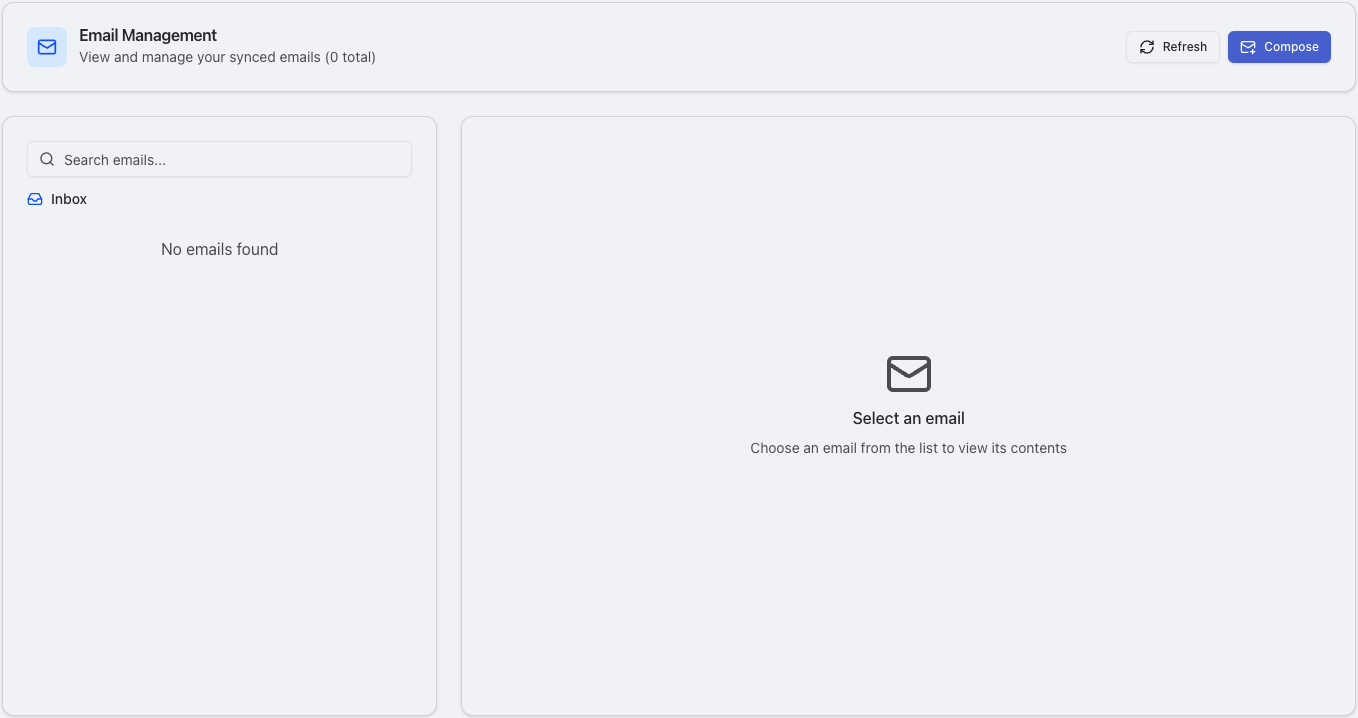
| **Emails Page** (`/emails`) | View and manage all your sent, draft, scheduled, and failed emails |
| **Email Sequences Page** (`/email-sequences`) | Manage active sequences and reusable sequence templates |
## Access Control
Email visibility is based on your connected integrations:
* **Personal integrations** (`scope = user`): Only you can see and send from this account
* **Organization integrations** (`scope = organization`): All organization members can see and send from this shared account
When composing emails, the integration selector dropdown shows all accounts you have access to — both your personal integrations and any organization-shared integrations.
## Supported Providers
Connect your Google account via OAuth. Supports:
* Reading and syncing emails
* Sending emails and replies
* Multiple Gmail accounts per user
* Personal or organization-wide access
[Set up Gmail integration →](/advanced/integrations/gmail)
Connect your Microsoft account via OAuth. Supports:
* Reading and syncing emails
* Sending emails and replies
* Multiple Outlook accounts per user
* Personal or organization-wide access
[Set up Outlook integration →](/advanced/integrations/outlook)
## Next Steps
Learn how to compose, personalize, and send emails
Build multi-step automated email campaigns
Create reusable sequence blueprints for your team
## Key Capabilities
Compose and send emails from connected Gmail or Outlook accounts without leaving Raycaster.
Use `{{Column Name}}` variables to automatically personalize emails with data from your sheets.
Generate personalized email drafts with AI based on your contact data and a prompt you provide.
Build multi-step email campaigns with a visual drag-and-drop builder, including wait times and conditional logic.
## How It Works
The email system connects to your email provider through a secure OAuth integration. Once connected, you can:
1. **Compose emails** from any sheet by selecting rows (recipients) and opening the email composer
2. **Use template variables** like `{{First Name}}` or `{{Company}}` that automatically resolve from your sheet data
3. **Generate AI drafts** by describing what you want to say and letting AI personalize each email
4. **Schedule emails** to send at a specific time
5. **Build sequences** for multi-step outreach campaigns with automated follow-ups
## Entry Points
There are several ways to access email features in Raycaster:
| Entry Point | What It Does |
| --------------------------------------------- | ---------------------------------------------------------------------------------------- |
| **Sheet Email Composer** | Select rows in a sheet and click the email button to compose emails for those recipients |
| **Emails Page** (`/emails`) | View and manage all your sent, draft, scheduled, and failed emails |
| **Email Sequences Page** (`/email-sequences`) | Manage active sequences and reusable sequence templates |
## Access Control
Email visibility is based on your connected integrations:
* **Personal integrations** (`scope = user`): Only you can see and send from this account
* **Organization integrations** (`scope = organization`): All organization members can see and send from this shared account
When composing emails, the integration selector dropdown shows all accounts you have access to — both your personal integrations and any organization-shared integrations.
## Supported Providers
Connect your Google account via OAuth. Supports:
* Reading and syncing emails
* Sending emails and replies
* Multiple Gmail accounts per user
* Personal or organization-wide access
[Set up Gmail integration →](/advanced/integrations/gmail)
Connect your Microsoft account via OAuth. Supports:
* Reading and syncing emails
* Sending emails and replies
* Multiple Outlook accounts per user
* Personal or organization-wide access
[Set up Outlook integration →](/advanced/integrations/outlook)
## Next Steps
Learn how to compose, personalize, and send emails
Build multi-step automated email campaigns
Create reusable sequence blueprints for your team