> ## Documentation Index
> Fetch the complete documentation index at: https://docs.raycaster.ai/llms.txt
> Use this file to discover all available pages before exploring further.
# CRM Syncing
> Understand how bidirectional CRM synchronization works between Raycaster and your CRM
## Overview
Raycaster's CRM syncing system lets you move data between your CRM (HubSpot or Salesforce) and your Raycaster sheets. You can pull CRM records into sheets for AI-powered enrichment, then push the results back to your CRM.
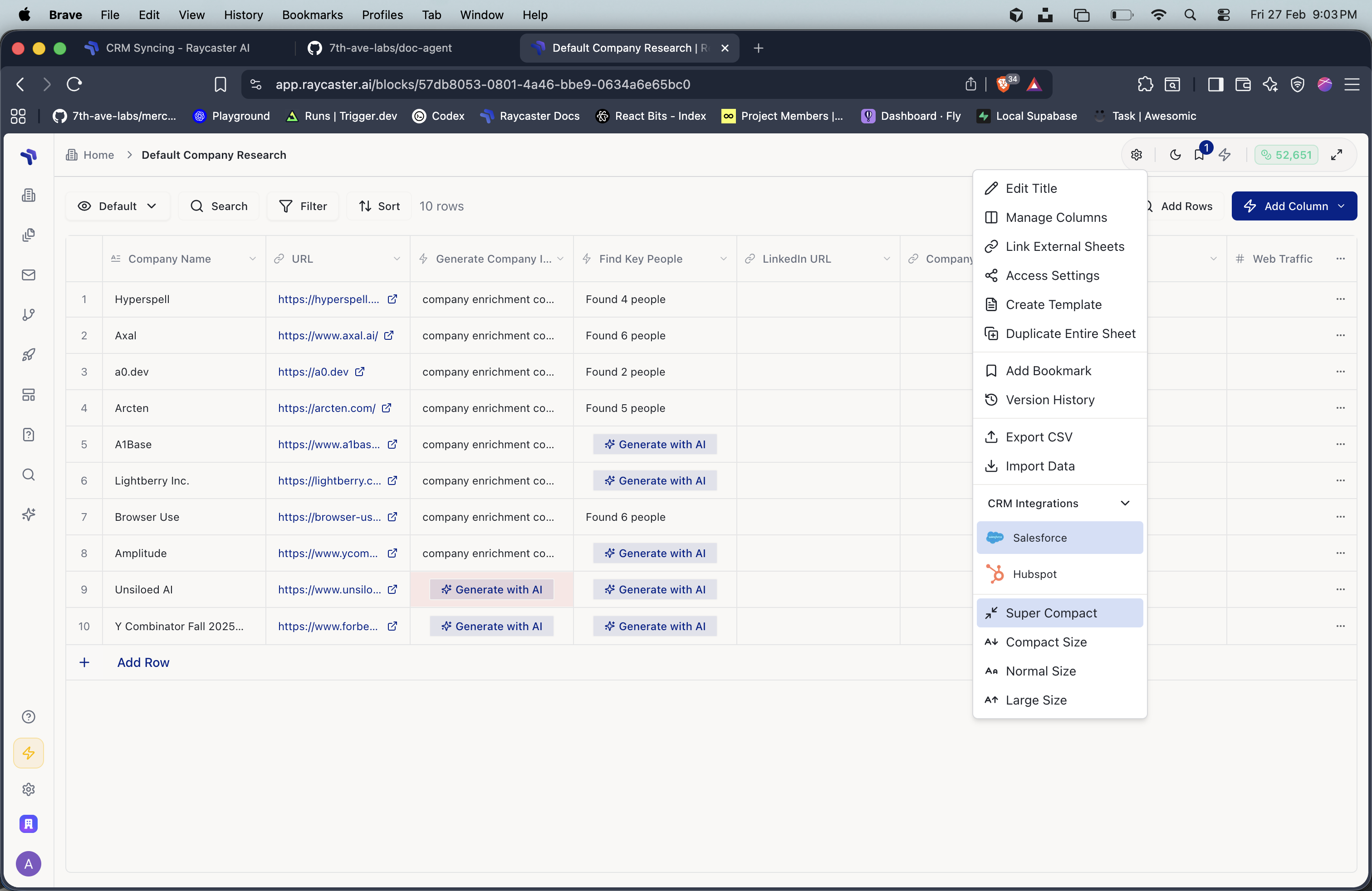 ## Sync Directions
**CRM → Raycaster Sheet**
Import contacts, companies, or accounts from your CRM into a Raycaster sheet.
**When to use:**
* Starting a new research project with existing CRM data
* Bringing in contacts for AI-powered enrichment or outreach
* Creating a working copy of CRM data for analysis
**What happens:**
1. Raycaster queries your CRM for records matching the configured entity type
2. Mapped fields are extracted from each record
3. New rows are created in your sheet with the CRM data
**Raycaster Sheet → CRM**
Export data from your Raycaster sheet back to your CRM.
**When to use:**
* Sending AI-enriched data back to your CRM
* Creating new CRM records from research results
* Updating existing CRM records with new information
**What happens:**
1. Raycaster reads each row in your sheet
2. Mapped columns are converted to CRM field values
3. New records are created in your CRM
**CRM ↔ Raycaster Sheet**
Sync in both directions simultaneously.
**When to use:**
* Keeping your sheet and CRM in continuous alignment
* Collaborative workflows where data changes in both places
Use bidirectional sync with caution. Changes in both the sheet and CRM between syncs may create conflicts.
## Field Mapping
Field mapping defines how your sheet columns correspond to CRM fields. This is the core of the sync configuration.
### How Field Mapping Works
Each mapping is a pair: **Sheet Column ↔ CRM Field**
| Sheet Column | HubSpot Field | Salesforce Field |
| ------------ | ------------- | ---------------- |
| First Name | `firstname` | `FirstName` |
| Last Name | `lastname` | `LastName` |
| Email | `email` | `Email` |
| Company | `company` | `Account.Name` |
| Phone | `phone` | `Phone` |
| Job Title | `jobtitle` | `Title` |
### Standard vs Custom Fields
Both standard and custom CRM fields are supported:
* **Standard fields** — Built-in fields like Name, Email, Phone that exist in every CRM
* **Custom fields** — Fields your team has added to your CRM (e.g., HubSpot custom properties or Salesforce fields ending in `__c`)
All available fields appear in the mapping interface when you configure sync.
### Mapping Best Practices
Include a unique field like `Email` in your mappings. This helps prevent duplicate records and enables future deduplication.
You don't need to map every CRM field. Map only the columns relevant to your current workflow to keep your sheet focused.
CRM templates come with pre-configured columns that match common CRM fields, reducing the time spent on manual mapping.
## Entity Types
### Contacts / People
Sync individual contact records:
* **HubSpot**: Contacts object
* **Salesforce**: Contact object
* **Unique key**: Email address
### Companies / Accounts
Sync organization records:
* **HubSpot**: Companies object
* **Salesforce**: Account object
* **Unique key**: Company name or domain
## CRM Templates
Raycaster provides pre-built sheet templates optimized for CRM data:
| Template | Description | Entity Type |
| -------------------------------------- | ---------------------------------------------------------------- | ------------------ |
| **People Template for CRMs** | Columns for contact data: name, email, phone, title, company | Contacts |
| **Company/Accounts Template for CRMs** | Columns for company data: name, domain, industry, size, location | Companies/Accounts |
Using a CRM template gives you:
* Pre-defined columns matching common CRM fields
* Faster field mapping setup
* Consistent structure across your team's sheets
## Sync Events and Tracking
Every sync operation is recorded with detailed tracking:
* **Event type** — What type of sync was performed (pull, push, bidirectional)
* **Records processed** — Total number of records handled
* **Successes** — Records that synced without issues
* **Errors** — Records that failed, with specific error messages
* **Duration** — How long the sync took
View sync history from the integrations settings page to monitor data flow and diagnose any issues.
## Workflow Example
Here's a typical workflow combining CRM sync with Raycaster's research capabilities:
Create a sheet from the "People Template for CRMs" and pull your target contacts from HubSpot or Salesforce.
Add research columns to find publications, patents, or company intelligence for each contact.
Use the AI-enriched data to generate personalized outbound messages for each contact.
Use the email system to send personalized outreach directly from Raycaster.
Push any new data (research findings, engagement status) back to your CRM to keep it up to date.
## Sync Directions
**CRM → Raycaster Sheet**
Import contacts, companies, or accounts from your CRM into a Raycaster sheet.
**When to use:**
* Starting a new research project with existing CRM data
* Bringing in contacts for AI-powered enrichment or outreach
* Creating a working copy of CRM data for analysis
**What happens:**
1. Raycaster queries your CRM for records matching the configured entity type
2. Mapped fields are extracted from each record
3. New rows are created in your sheet with the CRM data
**Raycaster Sheet → CRM**
Export data from your Raycaster sheet back to your CRM.
**When to use:**
* Sending AI-enriched data back to your CRM
* Creating new CRM records from research results
* Updating existing CRM records with new information
**What happens:**
1. Raycaster reads each row in your sheet
2. Mapped columns are converted to CRM field values
3. New records are created in your CRM
**CRM ↔ Raycaster Sheet**
Sync in both directions simultaneously.
**When to use:**
* Keeping your sheet and CRM in continuous alignment
* Collaborative workflows where data changes in both places
Use bidirectional sync with caution. Changes in both the sheet and CRM between syncs may create conflicts.
## Field Mapping
Field mapping defines how your sheet columns correspond to CRM fields. This is the core of the sync configuration.
### How Field Mapping Works
Each mapping is a pair: **Sheet Column ↔ CRM Field**
| Sheet Column | HubSpot Field | Salesforce Field |
| ------------ | ------------- | ---------------- |
| First Name | `firstname` | `FirstName` |
| Last Name | `lastname` | `LastName` |
| Email | `email` | `Email` |
| Company | `company` | `Account.Name` |
| Phone | `phone` | `Phone` |
| Job Title | `jobtitle` | `Title` |
### Standard vs Custom Fields
Both standard and custom CRM fields are supported:
* **Standard fields** — Built-in fields like Name, Email, Phone that exist in every CRM
* **Custom fields** — Fields your team has added to your CRM (e.g., HubSpot custom properties or Salesforce fields ending in `__c`)
All available fields appear in the mapping interface when you configure sync.
### Mapping Best Practices
Include a unique field like `Email` in your mappings. This helps prevent duplicate records and enables future deduplication.
You don't need to map every CRM field. Map only the columns relevant to your current workflow to keep your sheet focused.
CRM templates come with pre-configured columns that match common CRM fields, reducing the time spent on manual mapping.
## Entity Types
### Contacts / People
Sync individual contact records:
* **HubSpot**: Contacts object
* **Salesforce**: Contact object
* **Unique key**: Email address
### Companies / Accounts
Sync organization records:
* **HubSpot**: Companies object
* **Salesforce**: Account object
* **Unique key**: Company name or domain
## CRM Templates
Raycaster provides pre-built sheet templates optimized for CRM data:
| Template | Description | Entity Type |
| -------------------------------------- | ---------------------------------------------------------------- | ------------------ |
| **People Template for CRMs** | Columns for contact data: name, email, phone, title, company | Contacts |
| **Company/Accounts Template for CRMs** | Columns for company data: name, domain, industry, size, location | Companies/Accounts |
Using a CRM template gives you:
* Pre-defined columns matching common CRM fields
* Faster field mapping setup
* Consistent structure across your team's sheets
## Sync Events and Tracking
Every sync operation is recorded with detailed tracking:
* **Event type** — What type of sync was performed (pull, push, bidirectional)
* **Records processed** — Total number of records handled
* **Successes** — Records that synced without issues
* **Errors** — Records that failed, with specific error messages
* **Duration** — How long the sync took
View sync history from the integrations settings page to monitor data flow and diagnose any issues.
## Workflow Example
Here's a typical workflow combining CRM sync with Raycaster's research capabilities:
Create a sheet from the "People Template for CRMs" and pull your target contacts from HubSpot or Salesforce.
Add research columns to find publications, patents, or company intelligence for each contact.
Use the AI-enriched data to generate personalized outbound messages for each contact.
Use the email system to send personalized outreach directly from Raycaster.
Push any new data (research findings, engagement status) back to your CRM to keep it up to date.