> ## Documentation Index
> Fetch the complete documentation index at: https://docs.raycaster.ai/llms.txt
> Use this file to discover all available pages before exploring further.
# Outlook Integration
> Connect your Microsoft Outlook account to send, sync, and manage emails from Raycaster
## Overview
The Outlook integration connects your Microsoft email account to Raycaster, letting you send emails, sync your inbox, and run email sequences — all from within your workspace.
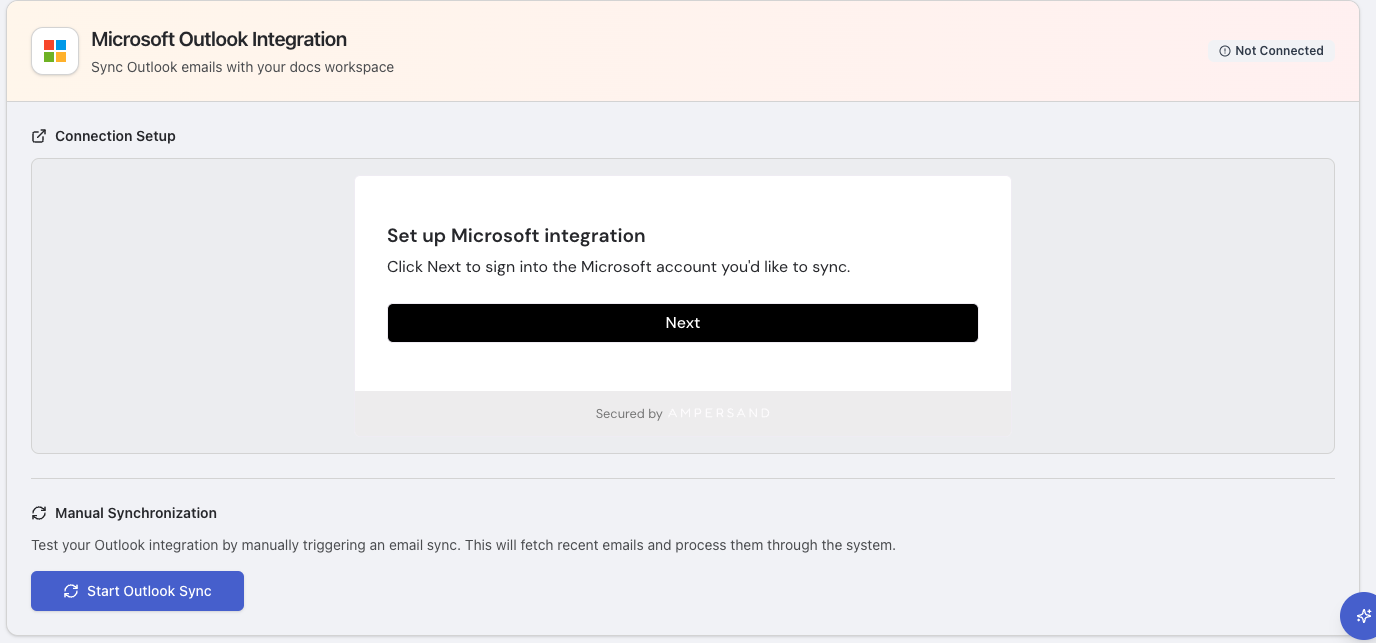 ## Setting Up Outlook
Navigate to **Settings → Integrations** in the sidebar.
Find the Microsoft section and click **"Add Integration"** (or **"Add Another Account"** if you already have one connected).
Select how this account should be shared:
* **Personal** — Only you can send from and view emails for this account
* **Organization** — All team members can use this account
Use **Personal** for your individual work email. Use **Organization** for a shared mailbox like `info@yourcompany.com`.
Click to authorize with Microsoft. You'll be redirected to Microsoft's sign-in page to grant permission.
**Permissions requested:**
* Read your emails
* Send emails on your behalf
* Read your profile information
Once authorized, the integration becomes active. You'll see a green status indicator with your connected email address.
## Multiple Accounts
Outlook supports connecting multiple accounts. For example, you might connect:
* Your personal work email as a **Personal** integration
* A shared department mailbox as an **Organization** integration
Each account operates independently with its own connection and scope settings.
## Syncing Emails
Once connected, you can sync your Outlook inbox to Raycaster:
* **Manual sync** — Click the **Sync** button on the integrations page to pull in recent emails on demand
* **View emails** — Navigate to the Emails page (`/emails`) to see all synced emails
* **Search** — Search across all synced emails from within Raycaster
### Sync Details
* Emails are transformed into a unified format for consistent display
* Read/unread status is preserved
* Conversation threads are maintained (using Microsoft's `conversationId`)
* Sync includes recent emails (configurable time range)
## Sending Emails
With Outlook connected, you can send emails from:
* **Sheet Email Composer** — Select rows and compose emails with variables
* **Email Sequences** — Automated multi-step campaigns
* **AI Chat** — Ask the AI assistant to send emails on your behalf
All sent emails appear in both your Outlook Sent Items folder and Raycaster's Emails page.
## Status Monitoring
The integrations page shows real-time status for each Outlook connection:
| Indicator | Meaning |
| ------------------- | -------------------------------------------------------------- |
| **Green checkmark** | Active and working. Shows connected email and account details. |
| **Gray circle** | Not connected or inactive. |
| **Red alert** | Error detected. Check error details for troubleshooting. |
## Troubleshooting
* Verify you're signing in with the correct Microsoft account
* Check that your organization's Azure AD allows third-party app access
* Admin consent may be required for organizational accounts — contact your IT admin
* Clear your browser cache and try again
* Click the manual **Sync** button to trigger a fresh sync
* Verify the integration shows an active (green) status
* Check if the connected email address is correct
* Microsoft token refresh is handled automatically, but reconnecting may fix token issues
* Confirm the integration is still active
* Verify the recipient email address is valid
* Check the failed email's error details on the Emails page
* For organizational accounts, verify your admin hasn't restricted send permissions
Some Microsoft organizations require an admin to approve third-party app access. If you see a "needs admin approval" message:
* Contact your IT administrator
* They need to grant consent for the Raycaster application in Azure AD
* Once approved, you can retry the connection
## Disconnecting
To remove an Outlook connection:
1. Go to **Settings → Integrations**
2. Find the Outlook integration you want to remove
3. Click **Disconnect** (or the uninstall button)
4. Confirm the removal
Disconnecting an integration does not delete previously sent emails or synced data. It only prevents future sending and syncing from that account.
## Setting Up Outlook
Navigate to **Settings → Integrations** in the sidebar.
Find the Microsoft section and click **"Add Integration"** (or **"Add Another Account"** if you already have one connected).
Select how this account should be shared:
* **Personal** — Only you can send from and view emails for this account
* **Organization** — All team members can use this account
Use **Personal** for your individual work email. Use **Organization** for a shared mailbox like `info@yourcompany.com`.
Click to authorize with Microsoft. You'll be redirected to Microsoft's sign-in page to grant permission.
**Permissions requested:**
* Read your emails
* Send emails on your behalf
* Read your profile information
Once authorized, the integration becomes active. You'll see a green status indicator with your connected email address.
## Multiple Accounts
Outlook supports connecting multiple accounts. For example, you might connect:
* Your personal work email as a **Personal** integration
* A shared department mailbox as an **Organization** integration
Each account operates independently with its own connection and scope settings.
## Syncing Emails
Once connected, you can sync your Outlook inbox to Raycaster:
* **Manual sync** — Click the **Sync** button on the integrations page to pull in recent emails on demand
* **View emails** — Navigate to the Emails page (`/emails`) to see all synced emails
* **Search** — Search across all synced emails from within Raycaster
### Sync Details
* Emails are transformed into a unified format for consistent display
* Read/unread status is preserved
* Conversation threads are maintained (using Microsoft's `conversationId`)
* Sync includes recent emails (configurable time range)
## Sending Emails
With Outlook connected, you can send emails from:
* **Sheet Email Composer** — Select rows and compose emails with variables
* **Email Sequences** — Automated multi-step campaigns
* **AI Chat** — Ask the AI assistant to send emails on your behalf
All sent emails appear in both your Outlook Sent Items folder and Raycaster's Emails page.
## Status Monitoring
The integrations page shows real-time status for each Outlook connection:
| Indicator | Meaning |
| ------------------- | -------------------------------------------------------------- |
| **Green checkmark** | Active and working. Shows connected email and account details. |
| **Gray circle** | Not connected or inactive. |
| **Red alert** | Error detected. Check error details for troubleshooting. |
## Troubleshooting
* Verify you're signing in with the correct Microsoft account
* Check that your organization's Azure AD allows third-party app access
* Admin consent may be required for organizational accounts — contact your IT admin
* Clear your browser cache and try again
* Click the manual **Sync** button to trigger a fresh sync
* Verify the integration shows an active (green) status
* Check if the connected email address is correct
* Microsoft token refresh is handled automatically, but reconnecting may fix token issues
* Confirm the integration is still active
* Verify the recipient email address is valid
* Check the failed email's error details on the Emails page
* For organizational accounts, verify your admin hasn't restricted send permissions
Some Microsoft organizations require an admin to approve third-party app access. If you see a "needs admin approval" message:
* Contact your IT administrator
* They need to grant consent for the Raycaster application in Azure AD
* Once approved, you can retry the connection
## Disconnecting
To remove an Outlook connection:
1. Go to **Settings → Integrations**
2. Find the Outlook integration you want to remove
3. Click **Disconnect** (or the uninstall button)
4. Confirm the removal
Disconnecting an integration does not delete previously sent emails or synced data. It only prevents future sending and syncing from that account.