> ## Documentation Index
> Fetch the complete documentation index at: https://docs.raycaster.ai/llms.txt
> Use this file to discover all available pages before exploring further.
# Integrations Overview
> Connect Raycaster with your email providers and CRM systems for seamless data flow
## Overview
Raycaster integrates with your existing email and CRM tools so you can work without switching between applications. Connect Gmail, Outlook, HubSpot, or Salesforce to sync data, send emails, and manage contacts directly from your workspace.
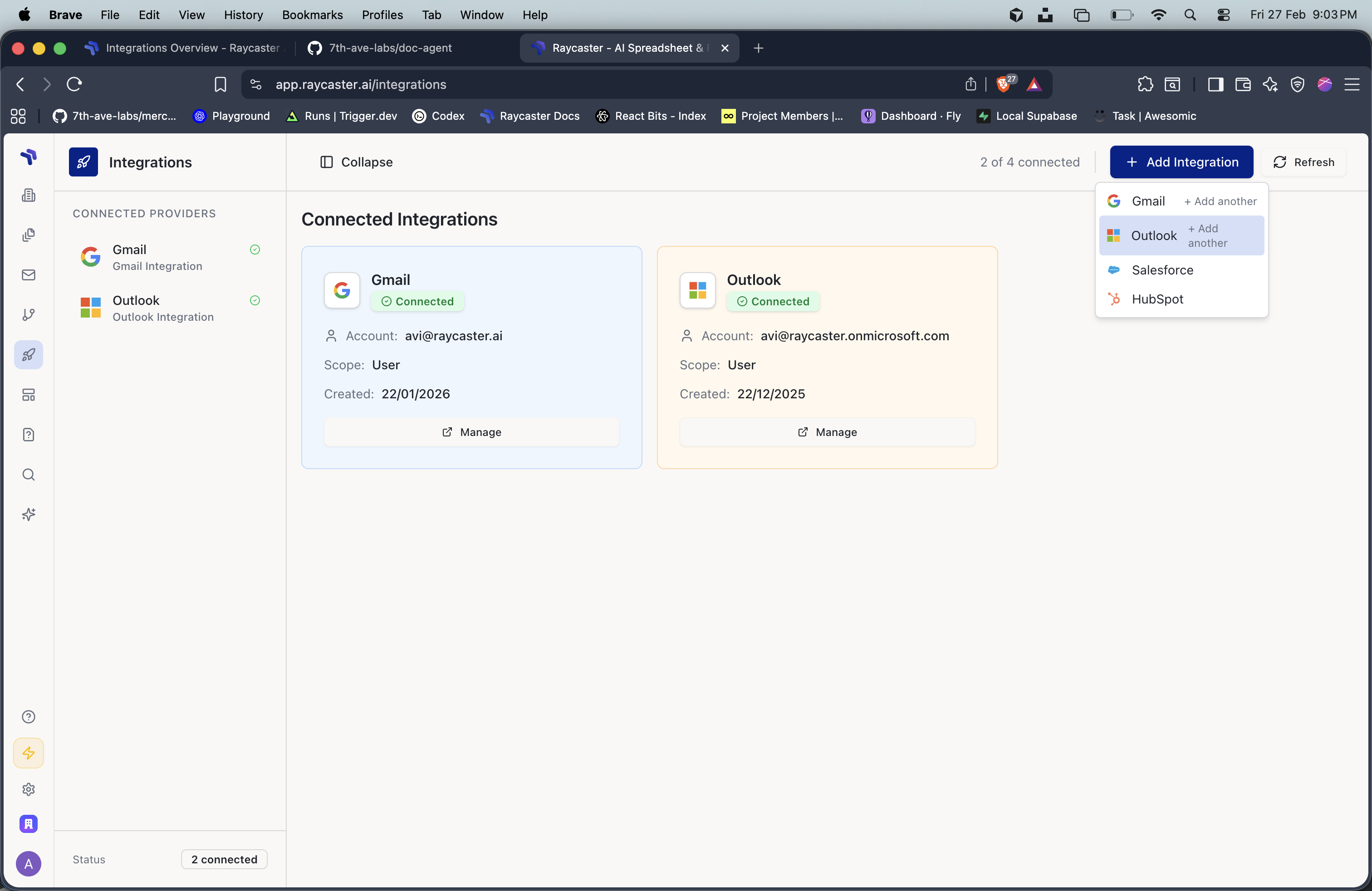 ## Available Integrations
Connect your Google account to send, receive, and sync emails directly from Raycaster.
Connect your Microsoft account for full Outlook email integration.
Sync contacts and companies between your HubSpot CRM and Raycaster sheets.
Sync contacts and accounts between Salesforce and Raycaster sheets.
## Integration Types
### Email Integrations (Gmail & Outlook)
Email integrations let you:
* **Send emails** directly from Raycaster using your connected accounts
* **Sync emails** to view your inbox within the workspace
* **Run email sequences** for automated multi-step outreach
* **Connect multiple accounts** per provider (e.g., work and personal Gmail)
* **Choose scope** — keep an account personal or share it organization-wide
### CRM Integrations (HubSpot & Salesforce)
CRM integrations let you:
* **Pull data** from your CRM into Raycaster sheets
* **Push data** from Raycaster sheets back to your CRM
* **Map fields** between sheet columns and CRM fields
* **Sync contacts and companies** with a single click
* **Use CRM templates** — pre-built sheets optimized for CRM data
## Setting Up an Integration
Go to **Settings** in the sidebar, then click **Integrations**.
Click **"Add Integration"** next to the service you want to connect (Gmail, Outlook, HubSpot, or Salesforce).
Sign in to your account and grant Raycaster permission to access your data. Authentication is handled via secure OAuth — Raycaster never stores your passwords.
For email integrations, choose whether this connection is:
* **Personal** — Only you can send and view emails from this account
* **Organization** — All team members can use this account
Your integration is now active. For email, you can start composing and sending. For CRM, configure field mapping and sync.
## Integration Scopes
| Scope | Who Can Use | Best For |
| ---------------- | ------------------------------- | ------------------------------------------- |
| **Personal** | Only the user who connected | Individual work email, personal CRM testing |
| **Organization** | All members of the organization | Shared team inbox, company CRM connection |
CRM integrations (HubSpot, Salesforce) are always organization-scoped. Each organization has one connection per CRM provider, shared by all members.
## Managing Integrations
From the integrations settings page, you can:
* **View status** — See which integrations are active, including the connected email address and last sync time
* **Sync manually** — Trigger an on-demand sync for any connected integration
* **Disconnect** — Remove an integration when it's no longer needed
* **Add accounts** — Connect additional email accounts (email integrations support multiple accounts)
## Security
All integrations use OAuth 2.0 for authentication:
* **No passwords stored** — Authentication tokens are managed securely by the integration proxy
* **Scoped permissions** — Raycaster only requests the minimum permissions needed (e.g., read and send email)
* **Rate limiting** — API calls are automatically rate-limited to prevent throttling
* **Multi-tenant isolation** — Each organization's data is fully isolated
## Available Integrations
Connect your Google account to send, receive, and sync emails directly from Raycaster.
Connect your Microsoft account for full Outlook email integration.
Sync contacts and companies between your HubSpot CRM and Raycaster sheets.
Sync contacts and accounts between Salesforce and Raycaster sheets.
## Integration Types
### Email Integrations (Gmail & Outlook)
Email integrations let you:
* **Send emails** directly from Raycaster using your connected accounts
* **Sync emails** to view your inbox within the workspace
* **Run email sequences** for automated multi-step outreach
* **Connect multiple accounts** per provider (e.g., work and personal Gmail)
* **Choose scope** — keep an account personal or share it organization-wide
### CRM Integrations (HubSpot & Salesforce)
CRM integrations let you:
* **Pull data** from your CRM into Raycaster sheets
* **Push data** from Raycaster sheets back to your CRM
* **Map fields** between sheet columns and CRM fields
* **Sync contacts and companies** with a single click
* **Use CRM templates** — pre-built sheets optimized for CRM data
## Setting Up an Integration
Go to **Settings** in the sidebar, then click **Integrations**.
Click **"Add Integration"** next to the service you want to connect (Gmail, Outlook, HubSpot, or Salesforce).
Sign in to your account and grant Raycaster permission to access your data. Authentication is handled via secure OAuth — Raycaster never stores your passwords.
For email integrations, choose whether this connection is:
* **Personal** — Only you can send and view emails from this account
* **Organization** — All team members can use this account
Your integration is now active. For email, you can start composing and sending. For CRM, configure field mapping and sync.
## Integration Scopes
| Scope | Who Can Use | Best For |
| ---------------- | ------------------------------- | ------------------------------------------- |
| **Personal** | Only the user who connected | Individual work email, personal CRM testing |
| **Organization** | All members of the organization | Shared team inbox, company CRM connection |
CRM integrations (HubSpot, Salesforce) are always organization-scoped. Each organization has one connection per CRM provider, shared by all members.
## Managing Integrations
From the integrations settings page, you can:
* **View status** — See which integrations are active, including the connected email address and last sync time
* **Sync manually** — Trigger an on-demand sync for any connected integration
* **Disconnect** — Remove an integration when it's no longer needed
* **Add accounts** — Connect additional email accounts (email integrations support multiple accounts)
## Security
All integrations use OAuth 2.0 for authentication:
* **No passwords stored** — Authentication tokens are managed securely by the integration proxy
* **Scoped permissions** — Raycaster only requests the minimum permissions needed (e.g., read and send email)
* **Rate limiting** — API calls are automatically rate-limited to prevent throttling
* **Multi-tenant isolation** — Each organization's data is fully isolated