> ## Documentation Index
> Fetch the complete documentation index at: https://docs.raycaster.ai/llms.txt
> Use this file to discover all available pages before exploring further.
# Rows
> Learn how to add and manage rows in Raycaster AI Workspace sheets
## Understanding Rows
In Raycaster, rows represent individual entities in your sheet - a company, a person, or any other item you're researching. Each row contains cells that hold data for the different columns in your sheet.
## Adding Rows:
Click "Add Row" to add a new row. You can also import a preexisting CSV.
 ## Managing Rows
### Selecting Rows
To work with existing rows:
* Click on the row number or checkbox to select a single row
* Hold Shift and click to select a range of rows
* Click the header checkbox to select all visible rows
## Managing Rows
### Selecting Rows
To work with existing rows:
* Click on the row number or checkbox to select a single row
* Hold Shift and click to select a range of rows
* Click the header checkbox to select all visible rows
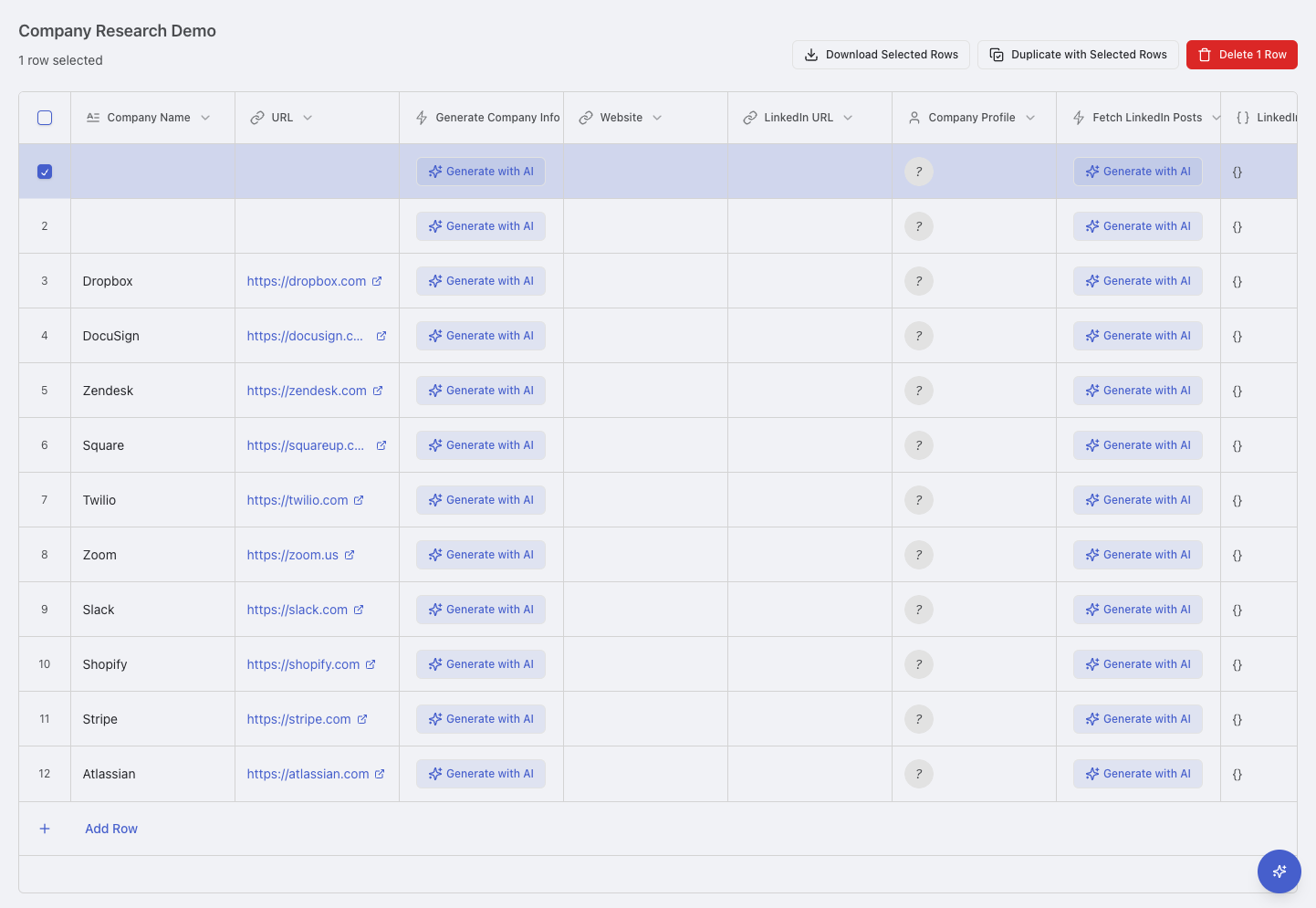 ### Deleting Rows
To remove rows from your sheet:
Select the row(s) you want to delete using the checkboxes
Click the "Delete" button in the toolbar, or right-click and select "Delete rows"
Confirm the deletion in the dialog that appears
Deleting rows permanently removes all their data and research results. This action cannot be undone.
### Duplicating Rows
To create a copy of existing rows:
1. Select the row(s) you want to duplicate
2. Right-click and select "Create new Sheet" from the context menu
3. The system will create copies into a new sheet
## Working with Cells
### Editing Cell Values
To modify data in a cell:
1. Click on the cell you want to edit
2. Enter or modify the content
3. Press Enter or click outside the cell to save changes
4. Press Escape to cancel editing
### Deleting Rows
To remove rows from your sheet:
Select the row(s) you want to delete using the checkboxes
Click the "Delete" button in the toolbar, or right-click and select "Delete rows"
Confirm the deletion in the dialog that appears
Deleting rows permanently removes all their data and research results. This action cannot be undone.
### Duplicating Rows
To create a copy of existing rows:
1. Select the row(s) you want to duplicate
2. Right-click and select "Create new Sheet" from the context menu
3. The system will create copies into a new sheet
## Working with Cells
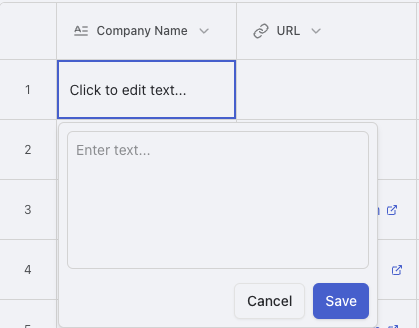
### Editing Cell Values
To modify data in a cell:
1. Click on the cell you want to edit
2. Enter or modify the content
3. Press Enter or click outside the cell to save changes
4. Press Escape to cancel editing
 ### Cell Types and Editors
Different column types have specialized editors:
* **Text**: Simple text entry or rich text editor
* **Number**: Numeric input with formatting options
* **Boolean**: Toggle switch or checkbox
* **Select**: Dropdown menu of predefined options
* **Multi-select**: Checkbox list of options
* **Date**: Date picker calendar
* **URL**: Link input with validation
### Cell Types and Editors
Different column types have specialized editors:
* **Text**: Simple text entry or rich text editor
* **Number**: Numeric input with formatting options
* **Boolean**: Toggle switch or checkbox
* **Select**: Dropdown menu of predefined options
* **Multi-select**: Checkbox list of options
* **Date**: Date picker calendar
* **URL**: Link input with validation