> ## Documentation Index
> Fetch the complete documentation index at: https://docs.raycaster.ai/llms.txt
> Use this file to discover all available pages before exploring further.
# Templates
> Create and manage reusable templates for your organization
 ## Overview
Templates provide reusable sheet structures that help your organization work consistently and efficiently. Access all templates from the **Templates** page where you can view built-in templates and manage your custom ones.
## Accessing Templates
### Templates Page Interface
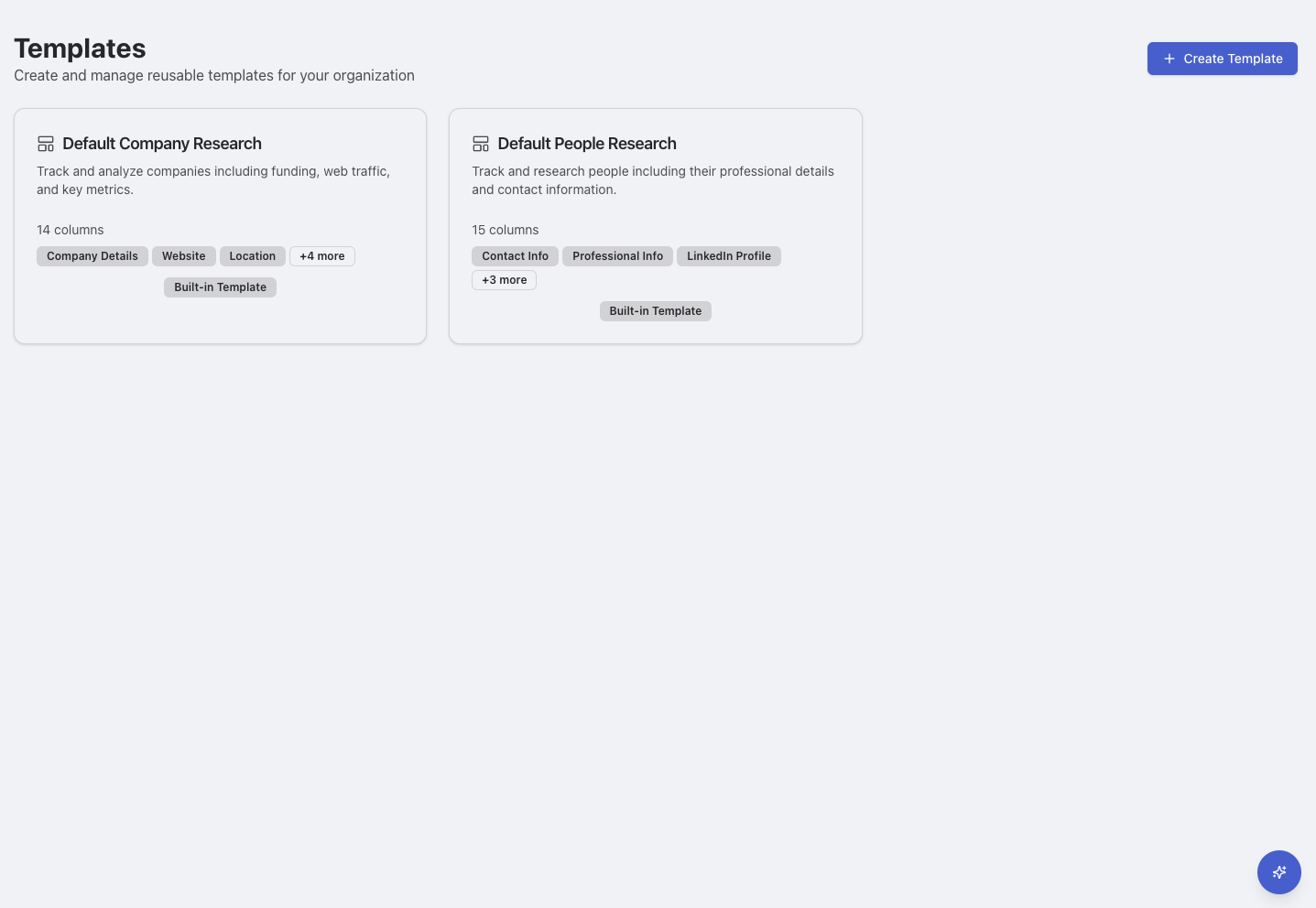
The **Templates** page shows all available templates in an organized card layout:
**Built-in Templates:**
* Display with "Built-in Template" badges
* Include column counts and feature tags
* Cannot be edited or deleted
* Available to all organization members
**Custom Templates:**
* Show edit and delete icons for templates you own
* Display "Edit Template" button for modifications
* Include column counts and customizable descriptions
* Can be shared with your organization
### Creating New Content from Templates
Click **+ Create Template** to make a new template, or use templates when creating sheets
Select from built-in templates or your custom templates
Set name, location, and access permissions
Your new content includes all template structure and settings
## Built-in Templates
### Default Company Research
Track and analyze companies including funding, web traffic, and key metrics.
**14 columns including:**
* **Company Details**: Company name, website, industry, location
* **Website**: Traffic analysis and web presence data
* **Location**: Geographic information and market presence
* **Funding**: Investment rounds, total funding, investors
* **Business Metrics**: Revenue, growth rate, employee count
* **Research Columns**: AI-powered company analysis and insights
### Default People Research
Track and research people including their professional details and contact information.
**15 columns including:**
* **Contact Info**: Name, email, phone, social profiles
* **Professional Info**: Title, company, department, experience level
* **LinkedIn Profile**: LinkedIn data and professional network
* **Background**: Education, career history, skills
* **Research Data**: AI-powered professional analysis
* **Engagement**: Interaction history and personalization data
## Template Management
### Editing Custom Templates
For templates you've created, use the template management options:
Navigate to the **Templates** page to view all your templates
Click the **Edit Template** button or edit icon on your custom template
Update columns, settings, descriptions, and sharing permissions
Save your modifications to update the template for future use
### Template Actions
**Edit Options:**
* **Edit Icon**: Quick access to template editor
* **Edit Template Button**: Full template modification interface
* **Column Management**: Add, remove, or modify template columns
* **Settings Update**: Change template name, description, and sharing
**Delete Options:**
* **Delete Icon**: Remove custom templates you no longer need
* **Confirmation Required**: Prevents accidental template deletion
* **Impact Warning**: Shows which content uses the template before deletion
Built-in templates (marked with "Built-in Template" badges) cannot be edited or deleted, but you can create custom templates based on them.
## Specialized Template Examples
### Clinical Trials Template
* **Trial Information**: NCT numbers, phases, status
* **Sponsors**: Companies, investigators, sites
* **Medical Details**: Indications, populations, endpoints
* **Timeline**: Start dates, milestones, completion
* **Regulatory**: FDA status, approvals, submissions
### Patent Research Template
* **Patent Info**: Numbers, titles, inventors, assignees
* **Classification**: IPC/CPC codes, technology categories
* **Analysis**: Patent family, citations, legal status
* **Commercial**: Applications, licensing opportunities
### Publication Research Template
* **Bibliographic**: Title, authors, journal, publication date
* **Content**: Abstract, keywords, methodology, findings
* **Network**: Author affiliations, funding sources
* **Impact**: Citations, collaboration networks
## Creating Custom Templates
### Using the Create Template Button
Access template creation from the **Templates** page:
Navigate to the **Templates** page in your workspace
Click the **+ Create Template** button in the top right
## Overview
Templates provide reusable sheet structures that help your organization work consistently and efficiently. Access all templates from the **Templates** page where you can view built-in templates and manage your custom ones.
## Accessing Templates
### Templates Page Interface
The **Templates** page shows all available templates in an organized card layout:
**Built-in Templates:**
* Display with "Built-in Template" badges
* Include column counts and feature tags
* Cannot be edited or deleted
* Available to all organization members
**Custom Templates:**
* Show edit and delete icons for templates you own
* Display "Edit Template" button for modifications
* Include column counts and customizable descriptions
* Can be shared with your organization
### Creating New Content from Templates
Click **+ Create Template** to make a new template, or use templates when creating sheets
Select from built-in templates or your custom templates
Set name, location, and access permissions
Your new content includes all template structure and settings
## Built-in Templates
### Default Company Research
Track and analyze companies including funding, web traffic, and key metrics.
**14 columns including:**
* **Company Details**: Company name, website, industry, location
* **Website**: Traffic analysis and web presence data
* **Location**: Geographic information and market presence
* **Funding**: Investment rounds, total funding, investors
* **Business Metrics**: Revenue, growth rate, employee count
* **Research Columns**: AI-powered company analysis and insights
### Default People Research
Track and research people including their professional details and contact information.
**15 columns including:**
* **Contact Info**: Name, email, phone, social profiles
* **Professional Info**: Title, company, department, experience level
* **LinkedIn Profile**: LinkedIn data and professional network
* **Background**: Education, career history, skills
* **Research Data**: AI-powered professional analysis
* **Engagement**: Interaction history and personalization data
## Template Management
### Editing Custom Templates
For templates you've created, use the template management options:
Navigate to the **Templates** page to view all your templates
Click the **Edit Template** button or edit icon on your custom template
Update columns, settings, descriptions, and sharing permissions
Save your modifications to update the template for future use
### Template Actions
**Edit Options:**
* **Edit Icon**: Quick access to template editor
* **Edit Template Button**: Full template modification interface
* **Column Management**: Add, remove, or modify template columns
* **Settings Update**: Change template name, description, and sharing
**Delete Options:**
* **Delete Icon**: Remove custom templates you no longer need
* **Confirmation Required**: Prevents accidental template deletion
* **Impact Warning**: Shows which content uses the template before deletion
Built-in templates (marked with "Built-in Template" badges) cannot be edited or deleted, but you can create custom templates based on them.
## Specialized Template Examples
### Clinical Trials Template
* **Trial Information**: NCT numbers, phases, status
* **Sponsors**: Companies, investigators, sites
* **Medical Details**: Indications, populations, endpoints
* **Timeline**: Start dates, milestones, completion
* **Regulatory**: FDA status, approvals, submissions
### Patent Research Template
* **Patent Info**: Numbers, titles, inventors, assignees
* **Classification**: IPC/CPC codes, technology categories
* **Analysis**: Patent family, citations, legal status
* **Commercial**: Applications, licensing opportunities
### Publication Research Template
* **Bibliographic**: Title, authors, journal, publication date
* **Content**: Abstract, keywords, methodology, findings
* **Network**: Author affiliations, funding sources
* **Impact**: Citations, collaboration networks
## Creating Custom Templates
### Using the Create Template Button
Access template creation from the **Templates** page:
Navigate to the **Templates** page in your workspace
Click the **+ Create Template** button in the top right
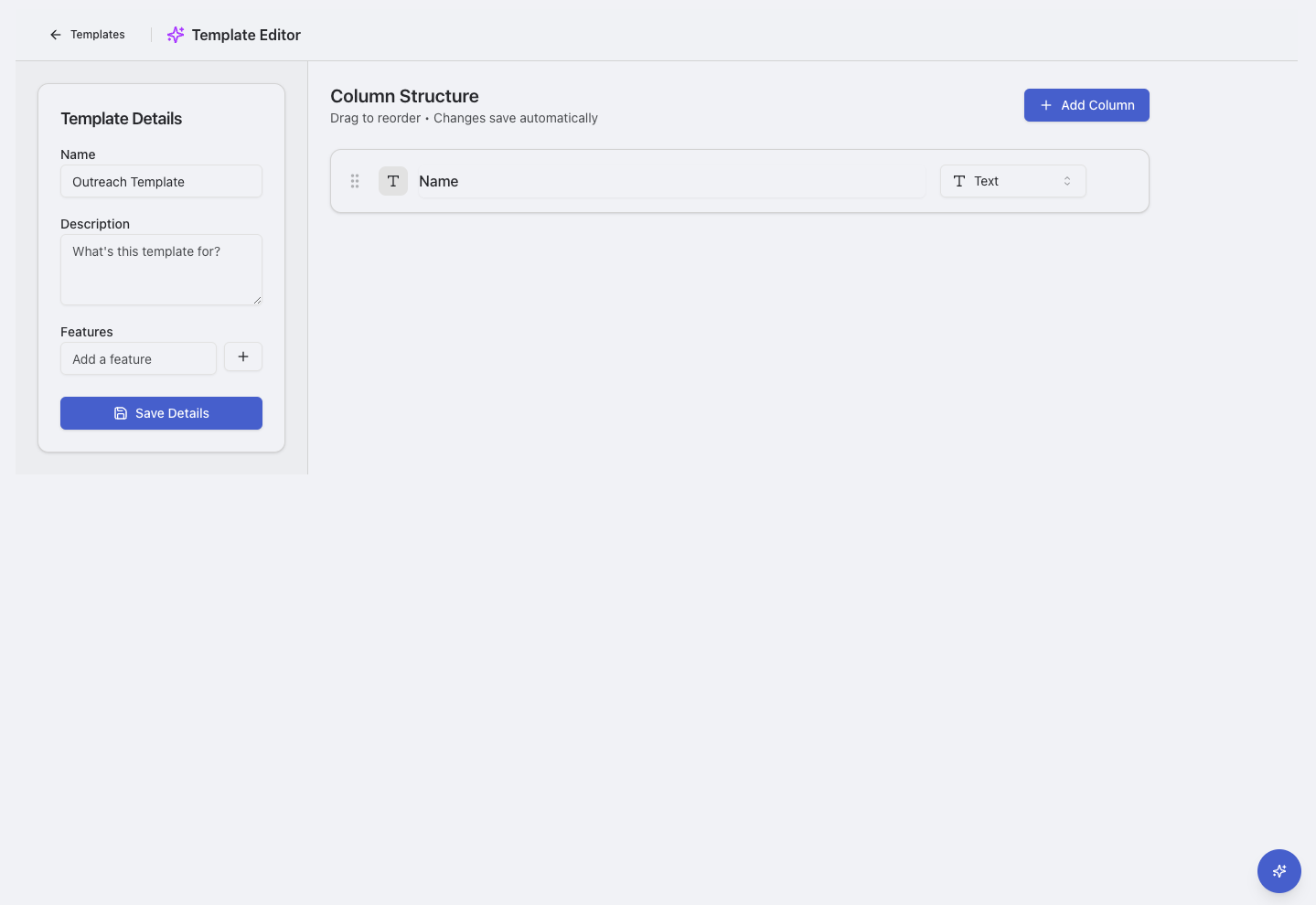 Set up your template structure:
* **Name**: Choose a descriptive template name
* **Description**: Explain the template's purpose
* **Columns**: Define the column types and settings
* **Research Settings**: Configure AI research capabilities
Choose template visibility:
* **Personal**: Only you can use this template
* **Organization**: Available to all team members
Save your template to make it available for creating new sheet
Set up your template structure:
* **Name**: Choose a descriptive template name
* **Description**: Explain the template's purpose
* **Columns**: Define the column types and settings
* **Research Settings**: Configure AI research capabilities
Choose template visibility:
* **Personal**: Only you can use this template
* **Organization**: Available to all team members
Save your template to make it available for creating new sheet