> ## Documentation Index
> Fetch the complete documentation index at: https://docs.raycaster.ai/llms.txt
> Use this file to discover all available pages before exploring further.

# Outbound Message Research

> Create personalized, data-driven outreach campaigns with Raycaster's outbound message research capabilities

<div class="mt-4 bg-gradient-to-br from-[#4F5DFF10] to-[#7B85FF15] rounded-xl p-6 pb-8 border border-[#4F5DFF20]">
  <h1 class="text-2xl font-bold mb-2">Outbound Message Research</h1>
  <p class="text-lg opacity-80 mb-4">Automatically generate personalized outreach messages based on your data for effective communication campaigns.</p>

  <div class="flex items-center gap-3 mb-4">
    <div class="bg-[#4F5DFF15] p-3 rounded-lg">
      <svg xmlns="http://www.w3.org/2000/svg" viewBox="0 0 24 24" fill="currentColor" class="w-6 h-6 text-[#4F5DFF]">
        <path d="M1.5 8.67v8.58a3 3 0 003 3h15a3 3 0 003-3V8.67l-8.928 5.493a3 3 0 01-3.144 0L1.5 8.67z" />

        <path d="M22.5 6.908V6.75a3 3 0 00-3-3h-15a3 3 0 00-3 3v.158l9.714 5.978a1.5 1.5 0 001.572 0L22.5 6.908z" />
      </svg>
    </div>

    <div>
      <h3 class="font-medium">Personalized Outreach</h3>
      <p class="text-sm opacity-75">Generate contextual messages based on your contact data and research</p>
    </div>
  </div>

  <div class="flex items-center gap-3 mb-4">
    <div class="bg-[#4F5DFF15] p-3 rounded-lg">
      <svg xmlns="http://www.w3.org/2000/svg" viewBox="0 0 24 24" fill="currentColor" class="w-6 h-6 text-[#4F5DFF]">
        <path fillRule="evenodd" d="M4.848 2.771A49.144 49.144 0 0112 2.25c2.43 0 4.817.178 7.152.52 1.978.292 3.348 2.024 3.348 3.97v6.02c0 1.946-1.37 3.678-3.348 3.97a48.901 48.901 0 01-3.476.383.39.39 0 00-.297.17l-2.755 4.133a.75.75 0 01-1.248 0l-2.755-4.133a.39.39 0 00-.297-.17 48.9 48.9 0 01-3.476-.384c-1.978-.29-3.348-2.024-3.348-3.97V6.741c0-1.946 1.37-3.68 3.348-3.97z" clipRule="evenodd" />
      </svg>
    </div>

    <div>
      <h3 class="font-medium">Communication Templates</h3>
      <p class="text-sm opacity-75">Create and refine message templates for different scenarios and audiences</p>
    </div>
  </div>

  <div class="flex items-center gap-3">
    <div class="bg-[#4F5DFF15] p-3 rounded-lg">
      <svg xmlns="http://www.w3.org/2000/svg" viewBox="0 0 24 24" fill="currentColor" class="w-6 h-6 text-[#4F5DFF]">
        <path d="M18.75 12.75h1.5a.75.75 0 000-1.5h-1.5a.75.75 0 000 1.5zM12 6a.75.75 0 01.75-.75h7.5a.75.75 0 010 1.5h-7.5A.75.75 0 0112 6zM12 18a.75.75 0 01.75-.75h7.5a.75.75 0 010 1.5h-7.5A.75.75 0 0112 18zM3.75 6.75h1.5a.75.75 0 100-1.5h-1.5a.75.75 0 000 1.5zM5.25 18.75h-1.5a.75.75 0 010-1.5h1.5a.75.75 0 010 1.5zM3 12a.75.75 0 01.75-.75h7.5a.75.75 0 010 1.5h-7.5A.75.75 0 013 12zM9 3.75a2.25 2.25 0 100 4.5 2.25 2.25 0 000-4.5zM12.75 12a2.25 2.25 0 114.5 0 2.25 2.25 0 01-4.5 0zM9 15.75a2.25 2.25 0 100 4.5 2.25 2.25 0 000-4.5z" />
      </svg>
    </div>

    <div>
      <h3 class="font-medium">Campaign Automation</h3>
      <p class="text-sm opacity-75">Streamline your outreach process with automated message generation</p>
    </div>
  </div>
</div>

## What is Outbound Message Research?

Imagine having a personal assistant who knows all about your contacts and can write perfectly tailored messages to each of them in seconds. That's what Outbound Message Research does for you.

### In Simple Terms

Outbound Message Research is a feature that automatically writes personalized messages for your contacts using information from your data tables. Instead of spending hours crafting individual emails or messages, you can have Raycaster generate them for you, tailored to each recipient.

<div class="bg-blue-50 dark:bg-blue-900/20 p-4 rounded-lg mb-6">
  <h4 class="font-medium text-blue-700 dark:text-blue-300 mb-2">Everyday Analogy</h4>
  <p>Think of it like having a friend who knows what you want to say and who you're talking to. Just like your friend might remind you to mention Jane's recent promotion or John's new project, Outbound Message Research remembers all the important details about your contacts like patents and publications and includes them in messages automatically.</p>
</div>

### Why Use Outbound Message Research?

Here's how Outbound Message Research helps you in everyday tasks:

1. **Save hours of writing time** - Generate dozens or hundreds of personalized messages in minutes
2. **Create more effective outreach** - Messages that reference specific details about the recipient get better responses
3. **Maintain a consistent tone** - All messages follow your preferred style and voice
4. **Never forget important details** - Automatically include relevant information from your data
5. **Scale your communication** - Reach more people without sacrificing personalization

<div class="bg-red-50 dark:bg-red-900/20 px-4 pb-4 pt-0 rounded-lg border border-red-200 dark:border-red-800 mb-6">
  <h3 class="text-red-700 dark:text-red-300 font-large flex items-center mb-2">
    <svg xmlns="http://www.w3.org/2000/svg" viewBox="0 0 24 24" fill="currentColor" class="w-5 h-5 mr-2">
      <path fillRule="evenodd" d="M9.401 3.003c1.155-2 4.043-2 5.197 0l7.355 12.748c1.154 2-.29 4.5-2.599 4.5H4.645c-2.309 0-3.752-2.5-2.598-4.5L9.4 3.003zM12 8.25a.75.75 0 01.75.75v3.75a.75.75 0 01-1.5 0V9a.75.75 0 01.75-.75zm0 8.25a.75.75 0 100-1.5.75.75 0 000 1.5z" clipRule="evenodd" />
    </svg>

    IMPORTANT: Outbound Messages are only for People Sheets
  </h3>

  <p class="text-sm text-red-700 dark:text-red-300 opacity-90">
    The Outbound Message Research feature is only available for <strong>Person Sheets</strong>
  </p>
</div>

## Setting Up Outbound Message Research - A Simple Guide

Follow these easy steps to start generating personalized messages:

<Steps>
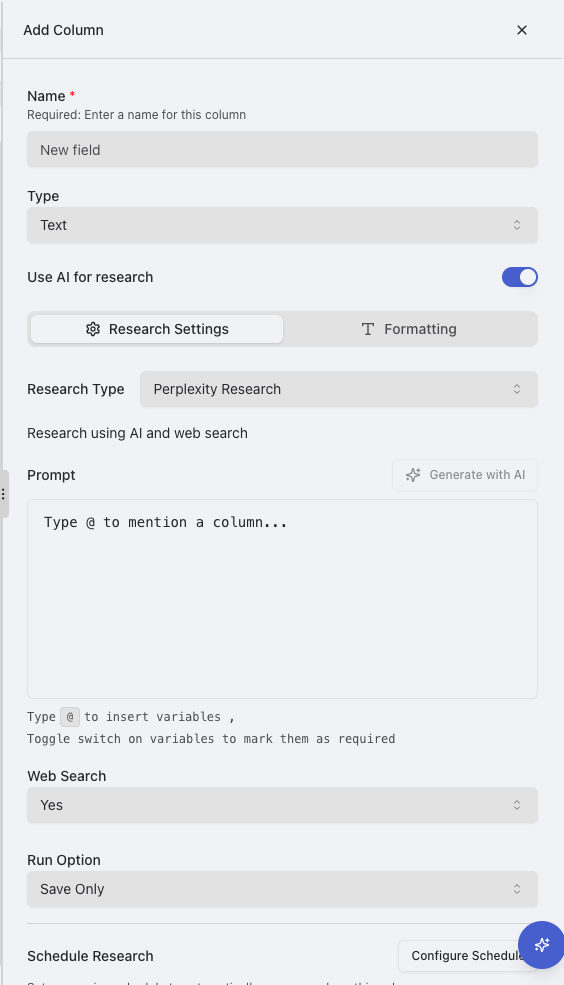
  <Step title="Step 1: Set Up Your Data Column">
    <div class="bg-slate-50 dark:bg-slate-800/50 p-4 rounded-lg mb-2">
      <p class="mb-2">First, make sure you have a columns that contain information about the people you want to contact. This could be:</p>

      <ul class="list-disc pl-5">
        <li>Contact names</li>
        <li>Company information</li>
        <li>Job titles</li>
        <li>Relevant Patents</li>
        <li>Relevant Publications</li>
        <li>Any other relevant details</li>
      </ul>

      <p class="mt-2">If you don't have this information organized yet, create a new column for it.</p>
    </div>

    <img src="https://mintcdn.com/raycaster/NkwkAu8IAZ9zTAYr/images/add-column.png?fit=max&auto=format&n=NkwkAu8IAZ9zTAYr&q=85&s=038a15c5a54034836c729253134c52c6" alt="Select or Create Column" class="rounded-lg border border-gray-200 dark:border-gray-700 my-2" width="564" height="985" data-path="images/add-column.png" />
  </Step>

  <Step title="Step 2: Create a Message Column">
    <div class="bg-slate-50 dark:bg-slate-800/50 p-4 rounded-lg mb-2">
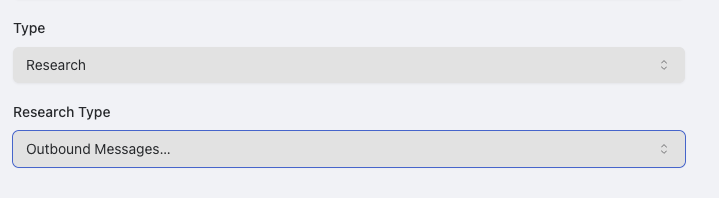
      <p class="mb-2">Now, create a new column where your generated messages will appear:</p>

      <ol class="list-decimal pl-5">
        <li>Click the "+" button at the right end of your column headers</li>
        <li>Name your column something like "Outreach Messages" or "Email Templates"</li>
        <li>For the column type, choose "Research"</li>
        <li>Then select "Outbound Message" as the research type</li>
      </ol>
    </div>

    <img src="https://mintcdn.com/raycaster/7UelhNhIiWBOCuCS/images/outbound-type.png?fit=max&auto=format&n=7UelhNhIiWBOCuCS&q=85&s=a006a585b44d3182d5330d02f38ec6de" alt="Create Research Column" class="rounded-lg border border-gray-200 dark:border-gray-700 my-2" width="719" height="198" data-path="images/outbound-type.png" />
  </Step>

  <Step title="Step 3: Set Up Your Message Template">
    <div class="bg-slate-50 dark:bg-slate-800/50 p-4 rounded-lg mb-2">
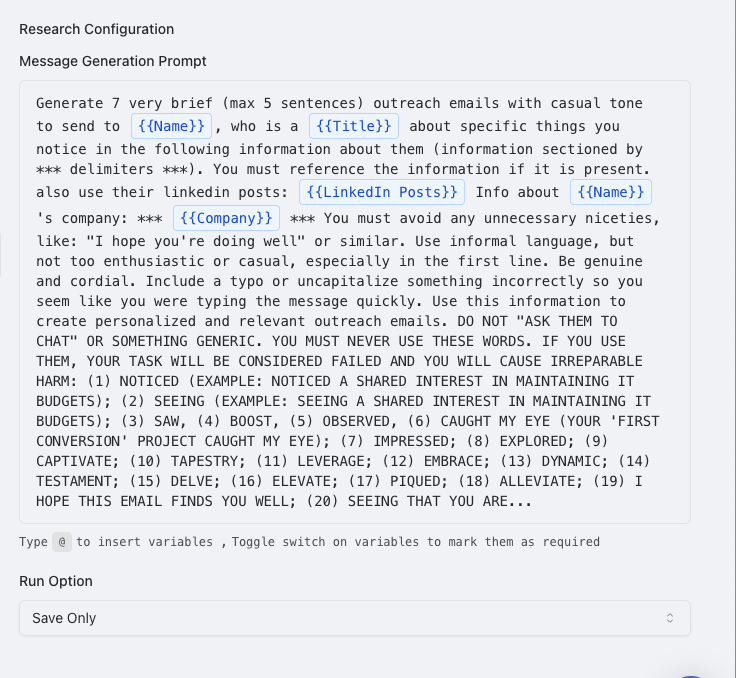
      <p class="mb-2">Now you'll tell Raycaster what kind of messages you want to create:</p>

      <ol class="list-decimal pl-5">
        <li>In the column editor, scroll down to "Research Configuration"</li>
        <li>Create a message template - this is like a fill-in-the-blank form for your messages</li>
        <li>Choose which pieces of information from your data should be included</li>
        <li>Set the tone (formal, friendly, etc.) and length of your messages</li>
      </ol>

      <p class="mt-2">You can write your template from scratch or start with one of Raycaster's pre-made templates.</p>
    </div>

    <img src="https://mintcdn.com/raycaster/7UelhNhIiWBOCuCS/images/message-config.png?fit=max&auto=format&n=7UelhNhIiWBOCuCS&q=85&s=556e68e220bbb2572bde26389fc490a4" alt="Configure Message Settings" class="rounded-lg border border-gray-200 dark:border-gray-700 my-2" width="736" height="678" data-path="images/message-config.png" />
  </Step>

  <Step title="Step 4: Save and Generate Messages">
    <div class="bg-slate-50 dark:bg-slate-800/50 p-4 rounded-lg mb-2">
      <p class="mb-2">Finally, save your settings and generate your messages:</p>

      <ol class="list-decimal pl-5">
        <li>Click "Save" to save your column settings without generating messages yet</li>
        <li>Or click "Save & Run All" to immediately create messages for all your contacts</li>
      </ol>

      <p class="mt-2">The messages will appear in your new column, ready for you to review and use.</p>
    </div>
  </Step>
</Steps>

## Creating Your Messages - One at a Time or All at Once

Once your column is set up, you have two ways to generate messages:

<div class="grid grid-cols-1 md:grid-cols-2 gap-6 mb-6">
  <div class="bg-white dark:bg-gray-800 p-5 rounded-lg border border-gray-200 dark:border-gray-700">
    <h3 class="font-medium mb-2">Individual Messages</h3>
    <p class="text-sm mb-3">To create a message for just one contact:</p>

    <ol class="list-decimal pl-5 text-sm">
      <li>Click on the cell in your new message column for that contact</li>
      <li>Click the research button (looks like a small magnifying glass)</li>
      <li>Wait a few seconds while Raycaster creates your personalized message</li>
      <li>Review the message and make any final edits if needed</li>
    </ol>

    <p class="text-sm mt-2">This is perfect when you want to carefully review each message before sending.</p>
  </div>

  <div class="bg-white dark:bg-gray-800 p-5 rounded-lg border border-gray-200 dark:border-gray-700">
    <h3 class="font-medium mb-2">Bulk Message Generation</h3>
    <p class="text-sm mb-3">To create messages for all your contacts at once:</p>

    <ol class="list-decimal pl-5 text-sm">
      <li>Click the column header of your message column</li>
      <li>Select "Run All" from the menu</li>
      <li>Wait while Raycaster generates all your messages</li>
      <li>Review and edit any messages as needed</li>
    </ol>

    <p class="text-sm mt-2">This saves time when you have many contacts to message.</p>
  </div>
</div>

## What Your Message Display Looks Like

## What Kinds of Messages Can You Create?

Outbound Message Research can generate many types of personalized messages:

<div class="grid grid-cols-1 md:grid-cols-3 gap-4 my-6">
  <div class="bg-white dark:bg-gray-800 p-4 rounded-lg border border-gray-200 dark:border-gray-700">
    <h3 class="font-medium mb-2">Email Templates</h3>
    <p class="text-sm">Complete emails with personalized subject lines and body text ready to copy into your email program.</p>
  </div>

  <div class="bg-white dark:bg-gray-800 p-4 rounded-lg border border-gray-200 dark:border-gray-700">
    <h3 class="font-medium mb-2">Social Media Messages</h3>
    <p class="text-sm">Platform-specific messages for LinkedIn, Twitter, and other social networks.</p>
  </div>

  <div class="bg-white dark:bg-gray-800 p-4 rounded-lg border border-gray-200 dark:border-gray-700">
    <h3 class="font-medium mb-2">Follow-up Sequences</h3>
    <p class="text-sm">Series of messages designed to be sent over time if you don't get a response.</p>
  </div>

  <div class="bg-white dark:bg-gray-800 p-4 rounded-lg border border-gray-200 dark:border-gray-700">
    <h3 class="font-medium mb-2">Sales Pitches</h3>
    <p class="text-sm">Value propositions tailored to each recipient's specific needs and challenges.</p>
  </div>

  <div class="bg-white dark:bg-gray-800 p-4 rounded-lg border border-gray-200 dark:border-gray-700">
    <h3 class="font-medium mb-2">Event Invitations</h3>
    <p class="text-sm">Personalized invitations to webinars, conferences, and other events.</p>
  </div>

  <div class="bg-white dark:bg-gray-800 p-4 rounded-lg border border-gray-200 dark:border-gray-700">
    <h3 class="font-medium mb-2">Thank You Notes</h3>
    <p class="text-sm">Appreciation messages that reference specific interactions or contributions.</p>
  </div>
</div>

## Tips for Better Messages

Follow these simple tips to get the best results from Outbound Message Research:

<div class="bg-slate-50 dark:bg-slate-800/50 p-4 rounded-lg mb-4">
  <h3 class="font-medium mb-3">How to Get Better Messages:</h3>

  <ol class="list-decimal pl-5">
    <li class="mb-2">
      <strong>Provide rich information</strong>
      <p class="text-sm">The more details you have about your contacts, the more personalized your messages will be.</p>
    </li>

    <li class="mb-2">
      <strong>Create clear templates</strong>
      <p class="text-sm">Make templates that show exactly where you want personalized content to appear.</p>
    </li>

    <li class="mb-2">
      <strong>Specify the tone</strong>
      <p class="text-sm">Tell Raycaster if you want formal, casual, friendly, or professional messages.</p>
    </li>

    <li class="mb-2">
      <strong>Include a clear call-to-action</strong>
      <p class="text-sm">Make sure your template specifies what you want the recipient to do next.</p>
    </li>

    <li class="mb-2">
      <strong>Set an appropriate length</strong>
      <p class="text-sm">Indicate whether you prefer brief messages or more detailed ones.</p>
    </li>
  </ol>
</div>

<Warning>
  The quality of your messages depends on the quality of your data. If you only have basic contact information, your messages will be less personalized. The more detailed your data about contacts, their companies, and your previous interactions, the better your messages will be.
</Warning>

## Getting Started Today

Ready to try Outbound Message Research? Here's a quick way to get started:

1. **Organize your contact data** - Make sure you have basic information about the people you want to contact
2. **Start with a simple template** - Create a basic message template for your first outreach
3. **Generate a few test messages** - Try it with a small group of contacts first
4. **Refine your approach** - Based on the results, adjust your template and settings
5. **Scale up your outreach** - Once you're happy with the quality, generate messages for your full contact list

Outbound Message Research makes it easy to create personalized, effective communication that helps you connect with people in a meaningful way.