 ## Content Types Overview
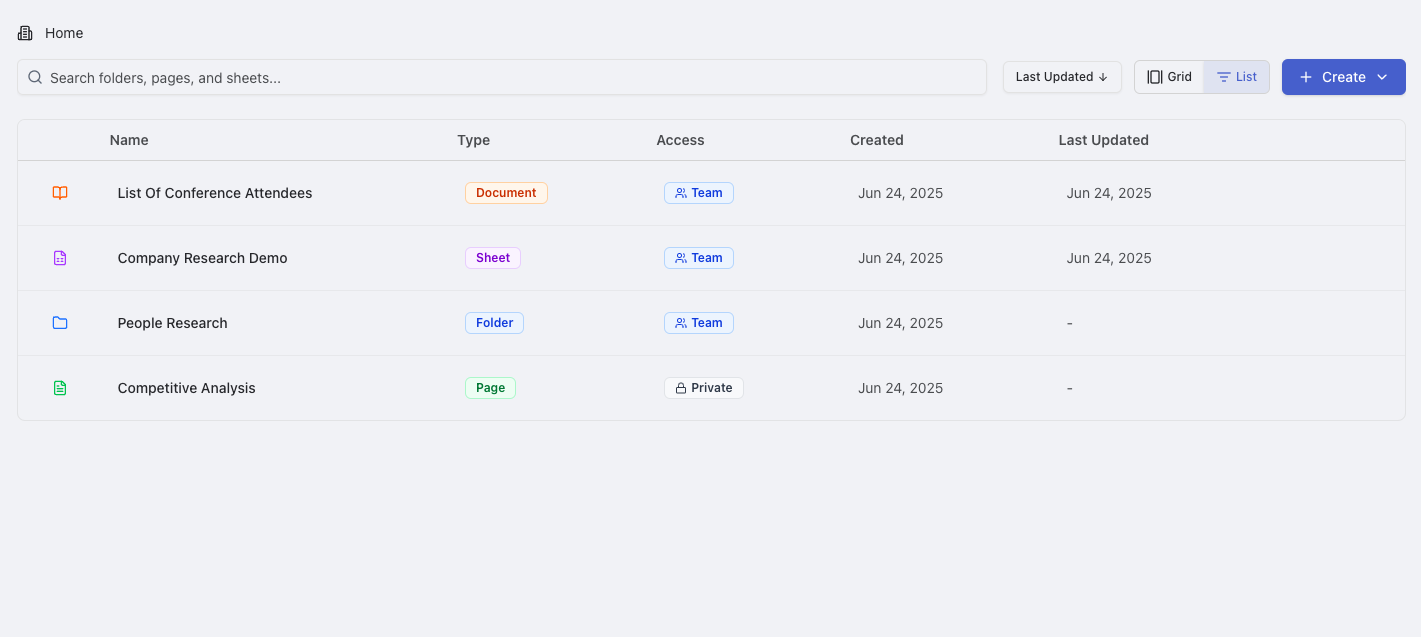
Raycaster supports several types of content that can be organized within the file system:
| Content Type | Purpose | Key Features |
| ---------------------------------------- | ------------------------------------------- | ------------------------------------------------ |
| [**Sheets**](/content-management/sheets) | Data tables with research capabilities | AI research, data analysis, collaboration |
| **Pages** | Flexible Notion-like content areas | Rich formatting, embedded content, documentation |
| **Documents** | Google Docs-like collaborative text editing | Real-time collaboration, version history |
| **Folders** | Hierarchical organization containers | Content organization, permission inheritance |
## Universal Creation Workflow
All content types in Raycaster follow a consistent creation pattern, making it easy to create any type of content from anywhere in your workspace.
## Content Types Overview
Raycaster supports several types of content that can be organized within the file system:
| Content Type | Purpose | Key Features |
| ---------------------------------------- | ------------------------------------------- | ------------------------------------------------ |
| [**Sheets**](/content-management/sheets) | Data tables with research capabilities | AI research, data analysis, collaboration |
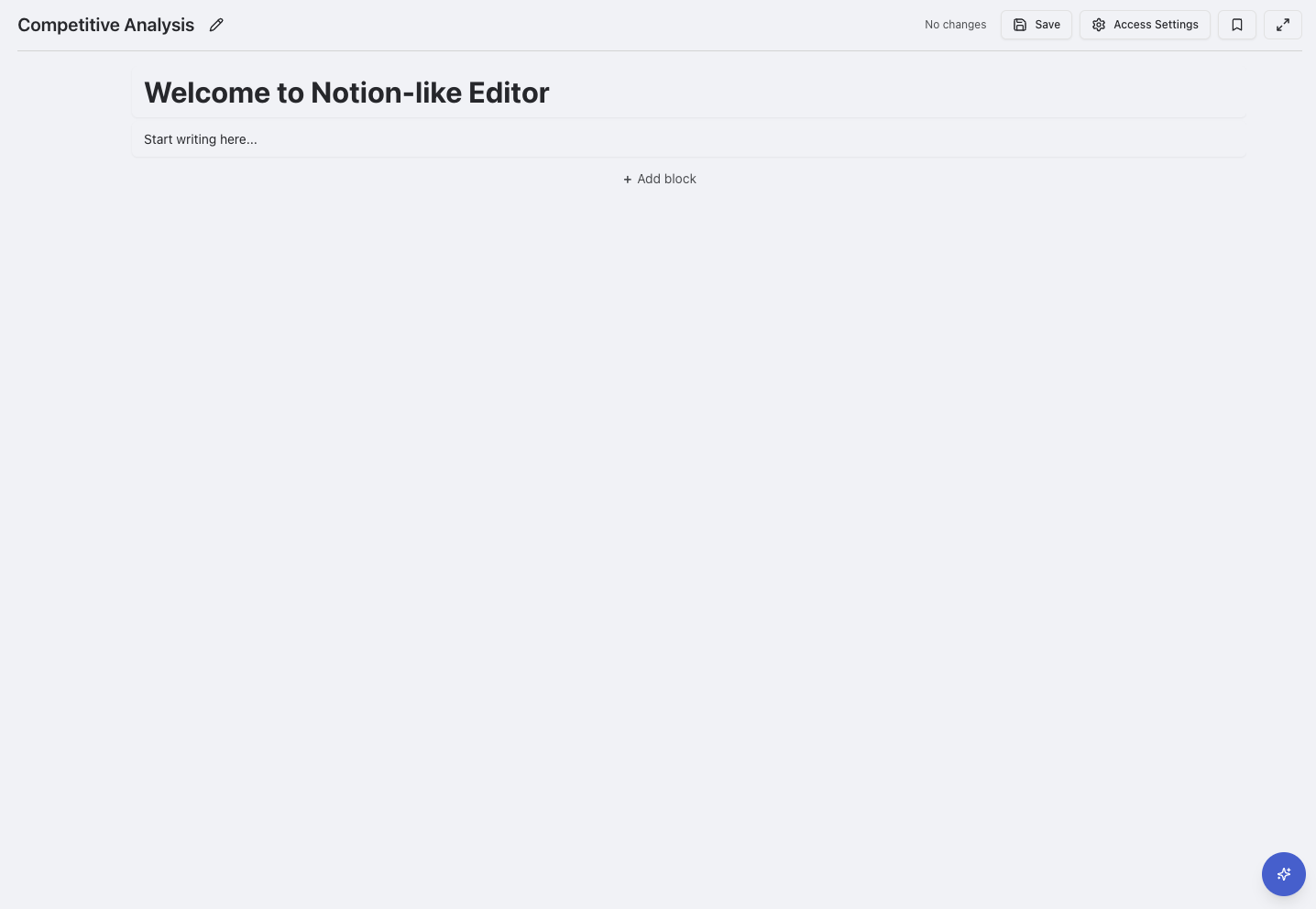
| **Pages** | Flexible Notion-like content areas | Rich formatting, embedded content, documentation |
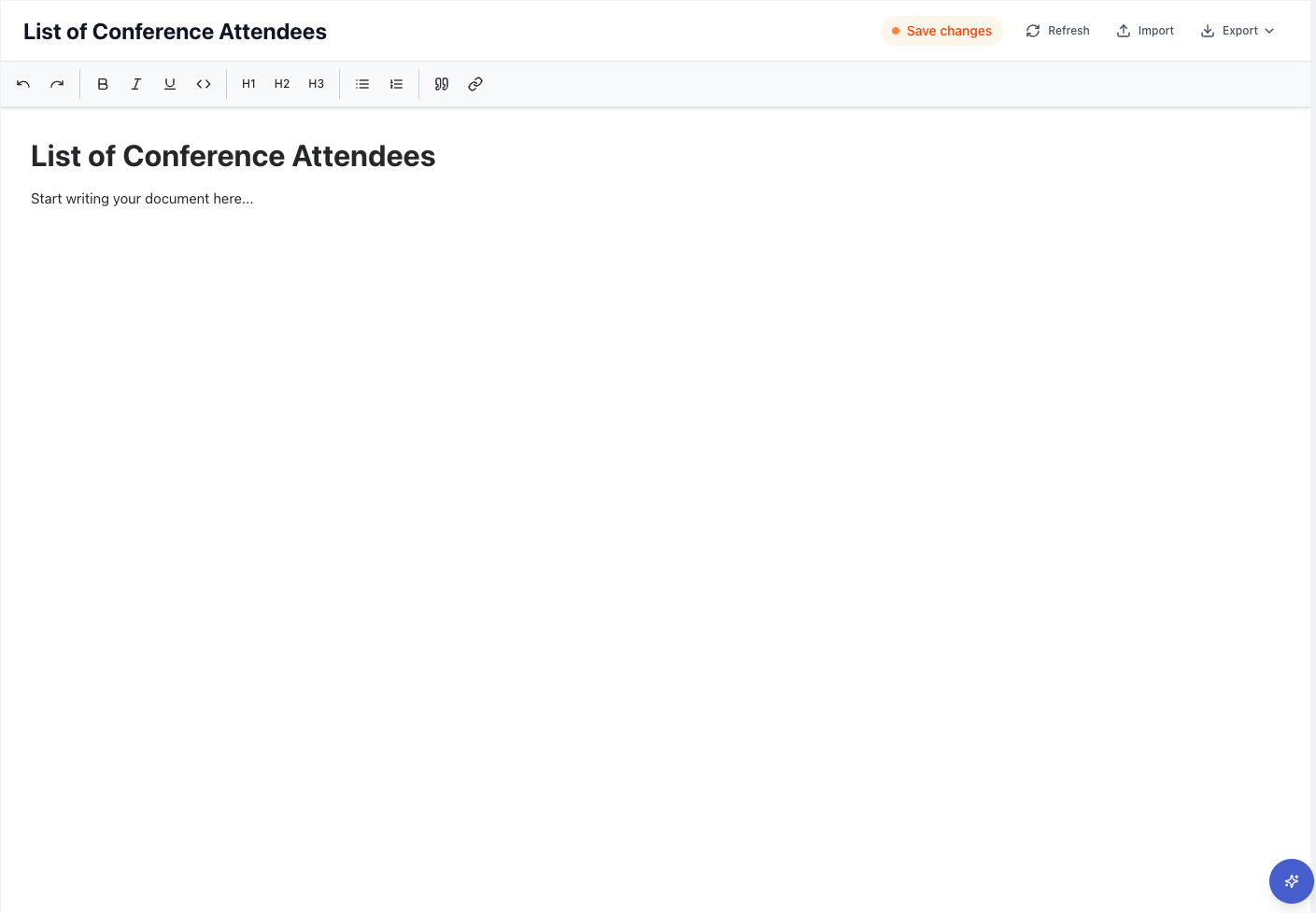
| **Documents** | Google Docs-like collaborative text editing | Real-time collaboration, version history |
| **Folders** | Hierarchical organization containers | Content organization, permission inheritance |
## Universal Creation Workflow
All content types in Raycaster follow a consistent creation pattern, making it easy to create any type of content from anywhere in your workspace.
 ### Page Management
**Templates and Reusability:**
* **Pre-built Templates**: Research documentation, meeting notes, project plans
* **Custom Templates**: Create and share templates across your organization
* **Professional Formats**: Compliance-ready structures for life sciences teams
**Search and Discovery:**
* Full-text search across all accessible pages
* Recent activity tracking with user timestamps
* Bookmark system for quick access to important pages
**Export Options:**
* **PDF Export**: Professional document formatting
* **Markdown Export**: Portable text format
* **HTML Export**: Web-ready content
### Page Management
**Templates and Reusability:**
* **Pre-built Templates**: Research documentation, meeting notes, project plans
* **Custom Templates**: Create and share templates across your organization
* **Professional Formats**: Compliance-ready structures for life sciences teams
**Search and Discovery:**
* Full-text search across all accessible pages
* Recent activity tracking with user timestamps
* Bookmark system for quick access to important pages
**Export Options:**
* **PDF Export**: Professional document formatting
* **Markdown Export**: Portable text format
* **HTML Export**: Web-ready content
 ### Import and Export
**Import Capabilities:**
* **Markdown (.md)**: Technical documentation, GitHub repos (100MB max)
* **Word Documents (.docx)**: Microsoft Word files with formatting preserved
**Export Options:**
* **Markdown (.md)**: Perfect for technical documentation and version control
* **Word Documents (.docx)**: Professional formatting for regulatory submissions
### Use Cases for Life Sciences
**Research Documentation:**
* Protocol development and standard operating procedures
* Literature reviews with structured findings
* Equipment usage guides and validation methods
**Regulatory and Compliance:**
* SOP documentation with version control
* Compliance reports for regulatory submissions
* Training materials and audit-ready documentation
## Folders
Folders provide hierarchical organization containers for all your content types. Think of folders as digital filing cabinets that help you structure your workspace logically, making it easy to find and manage related content.
### Folder Features
**Organization Benefits:**
* **Hierarchical Structure**: Create logical content hierarchies
* **Permission Inheritance**: Child content inherits folder permissions by default
* **Bulk Operations**: Move, organize, and manage multiple items
* **Access Control**: Set permissions at the folder level for streamlined management
**Best Practices:**
* Create logical hierarchies based on projects or teams
* Limit folder nesting depth to 4-5 levels maximum
* Use descriptive folder names that explain contents
* Regular reorganization to maintain clarity
### Import and Export
**Import Capabilities:**
* **Markdown (.md)**: Technical documentation, GitHub repos (100MB max)
* **Word Documents (.docx)**: Microsoft Word files with formatting preserved
**Export Options:**
* **Markdown (.md)**: Perfect for technical documentation and version control
* **Word Documents (.docx)**: Professional formatting for regulatory submissions
### Use Cases for Life Sciences
**Research Documentation:**
* Protocol development and standard operating procedures
* Literature reviews with structured findings
* Equipment usage guides and validation methods
**Regulatory and Compliance:**
* SOP documentation with version control
* Compliance reports for regulatory submissions
* Training materials and audit-ready documentation
## Folders
Folders provide hierarchical organization containers for all your content types. Think of folders as digital filing cabinets that help you structure your workspace logically, making it easy to find and manage related content.
### Folder Features
**Organization Benefits:**
* **Hierarchical Structure**: Create logical content hierarchies
* **Permission Inheritance**: Child content inherits folder permissions by default
* **Bulk Operations**: Move, organize, and manage multiple items
* **Access Control**: Set permissions at the folder level for streamlined management
**Best Practices:**
* Create logical hierarchies based on projects or teams
* Limit folder nesting depth to 4-5 levels maximum
* Use descriptive folder names that explain contents
* Regular reorganization to maintain clarity
 ## Navigation and Discovery
### Quick Navigation
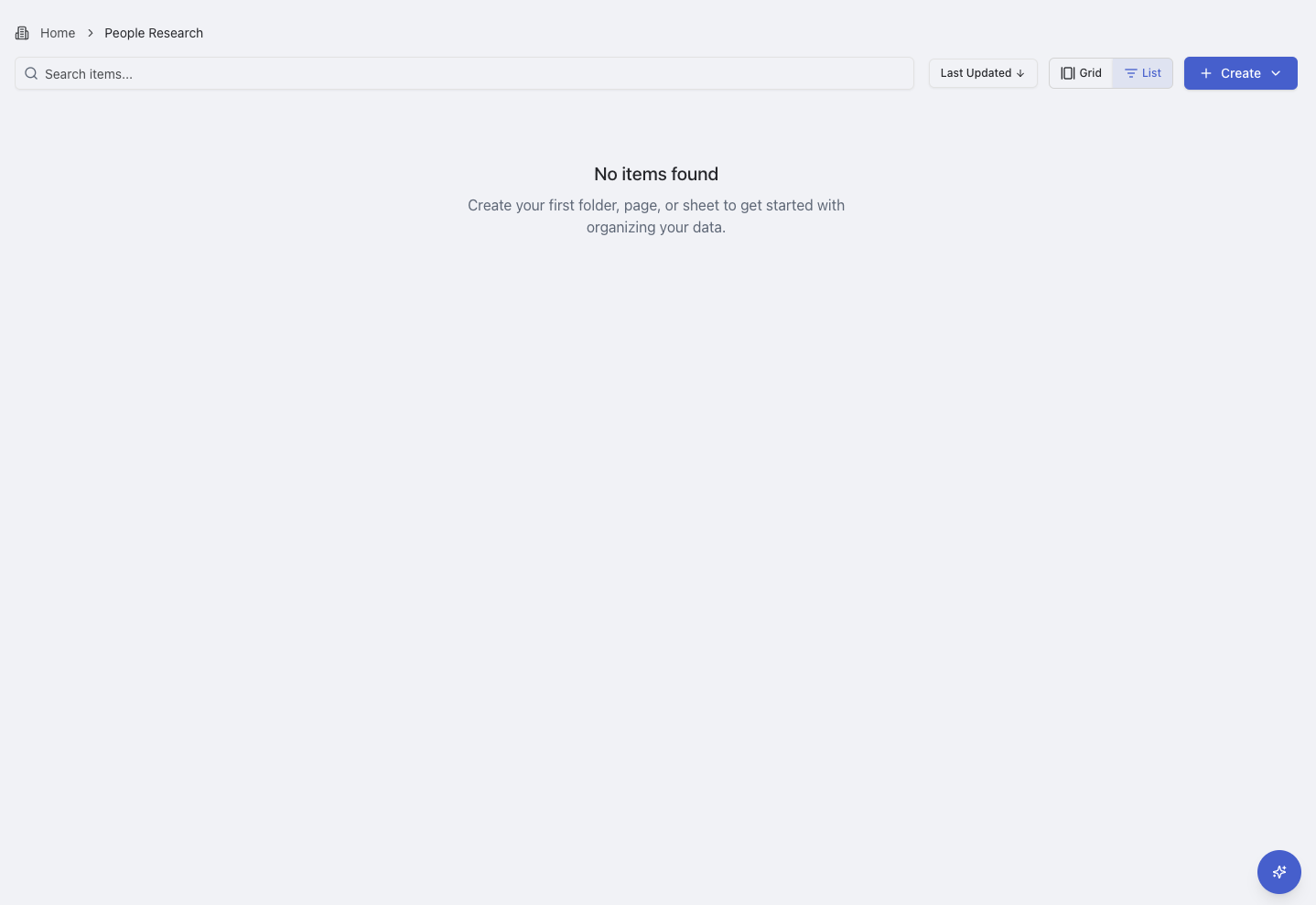
**Breadcrumb Navigation**: Clear path showing your current location with click-to-navigate functionality
**View Options:**
* **Grid View**: Visual thumbnails with quick preview
* **List View**: Detailed information in sortable columns
**Search and Filtering**: Full-text search across content with sorting by name, date, and type
## Content Organization
### Moving and Managing Content
## Navigation and Discovery
### Quick Navigation
**Breadcrumb Navigation**: Clear path showing your current location with click-to-navigate functionality
**View Options:**
* **Grid View**: Visual thumbnails with quick preview
* **List View**: Detailed information in sortable columns
**Search and Filtering**: Full-text search across content with sorting by name, date, and type
## Content Organization
### Moving and Managing Content
Ready to organize your workspace? Start by exploring our comprehensive Sheets guide for data management and research workflows.